
SOP to guide users through the process of adding a goal to a workflow. Goals help define the end objective of a workflow and provide a way to measure its success by determining when a contact has completed the workflow's desired action.
Context
Adding a goal to a workflow helps track whether contacts meet the criteria that signify successful workflow outcomes. It also helps with automating unenrollment of contacts when they achieve the workflow’s intended result.
Terminologies
- Workflow: A series of automated actions in HubSpot based on set criteria.
- Workflow Goal: A condition set within a workflow that indicates when a contact has completed the desired action or met the workflow objective.
- Filter: Specific conditions or criteria that define the goal.
Tools
Add any relevant tools associated with this process.
- Hubspot - Used for creating and managing properties.
Roles & responsibilities
Define who will be executing the activities related to the SOP.
- Team Member: Responsible for setting up and updating workflow goals.
- Approver: Reviews workflow goals and ensures they align with campaign objectives.
Procedure
Step 1:
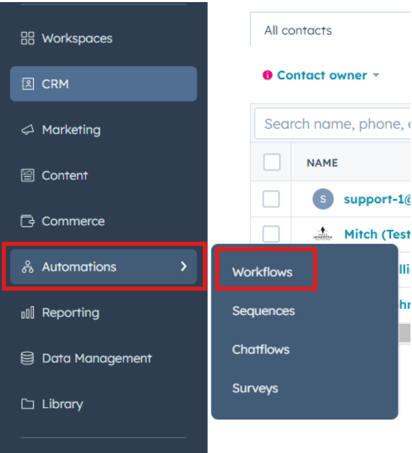
Navigate to Automation in HubSpot and select Workflows.
Step 2:
Search for the workflow to which you want to add a goal and select it.
Step 3:
Click Edit to enter the workflow's by opening it.
Step 4:
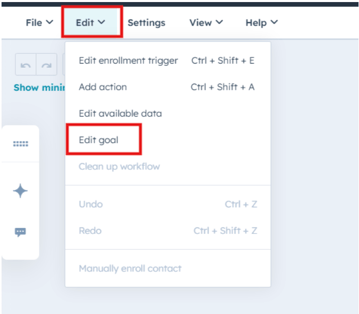
Locate and select Goal or Enrollment Triggers by clicking Edit -> Goal.
Step 5:
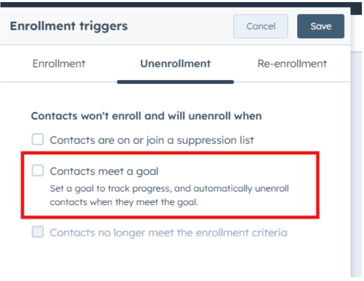
Select Contact met goal to start configuring the goal criteria.
Step 6:
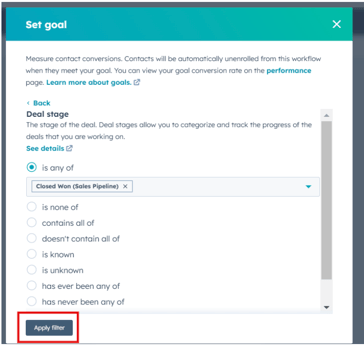
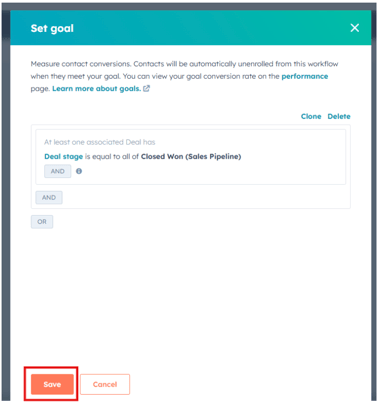
Click Add filter and set the specific criteria that define the goal (e.g., contact has submitted a form, reached a deal stage, etc.).
Step 7:
Once the filters are set, click Save to apply the goal to the workflow.
Notes
- Contacts that meet the goal criteria will automatically be unenrolled from the workflow.
- Regularly review workflow goals to ensure they align with your current business objectives and metrics for success.