
This guide will walk you through adding HubSpot to a private Slack channel, as this needs to be completed directly by you.
LOOM VIDEO: https://www.loom.com/share/a0793fbd108341c3a24fe3d6719e9f8d?sid=d7156eda-c267-450c-8200-e5e0c67f372a
Context
- Adding HubSpot to private Slack channels allows users to receive HubSpot notifications and updates directly in Slack. This integration improves communication and workflow efficiency by keeping teams updated within a centralized platform.
Terminologies
Add any unfamiliar or domain specific words with their definitions here.
- Term: The definition of the term
Tools
Add any relevant tools associated with this process.
Roles & responsibilities
Define who will be executing the activities related to the SOP. \
- Team Member: Responsible for sending this to the client.
- Client: Following this instruction and they need to integrate and connect slack.
Procedure
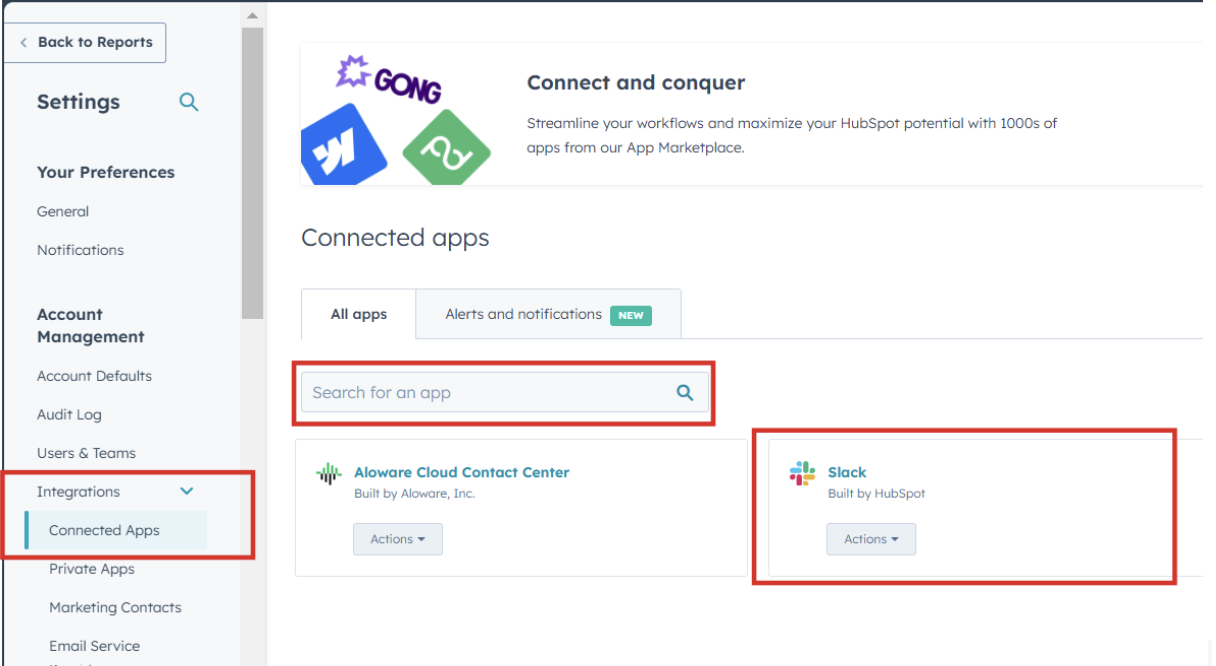
Step 1: Integrate HubSpot with Slack
- Log in to HubSpot and navigate to Settings > Integrations > Connected Apps.
- Find Slack in the list, then click Connect App.
- Follow the prompts to complete the integration.
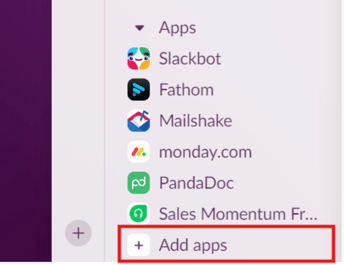
Step 2: Open Slack and Access Apps
- Open Slack and go to the Add apps section in the lower-left panel.
Step 3: Search for HubSpot
- Type HubSpot into the search bar and select it from the results.
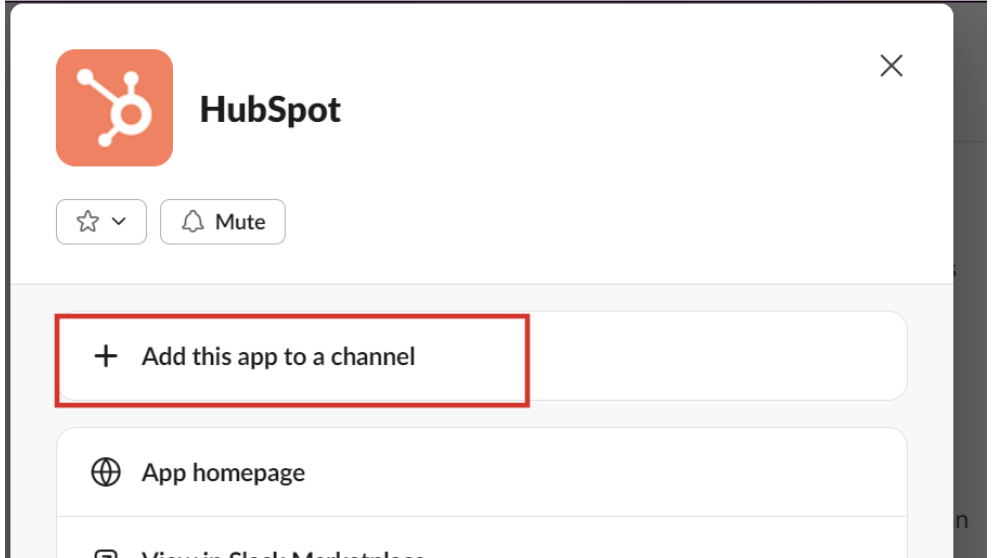
- Click on HubSpot to open the app, then click the HubSpot name at the top of the window.

Step 4: Add HubSpot to a Channel
- Click on Add this app to a channel.
- Select the channel you want to connect HubSpot to and confirm.
Step 5: Verify Integration
- Confirm that HubSpot is now active in the channel by sending a test notification if needed