
A guide to the team members through the process of connecting their email to HubSpot, enabling efficient communication and email tracking. With this SOP, users will ensure seamless integration and better coordination between sales and marketing.
Context
This SOP applies to team members who need to connect their email accounts to HubSpot for improved tracking and management of communications with clients and leads.
Tools
- Hubspot
- Gmail/Outlook
Roles & responsibilities
- Clients Team member: Who will need to have their email connected to HubSpot
Procedure
1. Log in to HubSpot
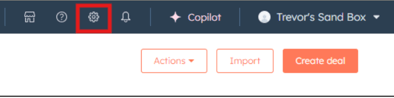
- Click the gear icon in the top-right to open Settings.
2. Go to General Email Settings
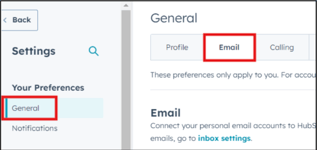
- In the left-hand sidebar, under “General,” click on “Email.”
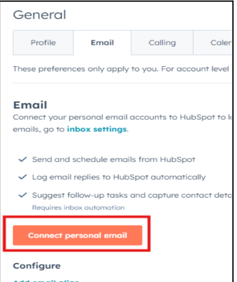
- Click on Connect personal email.
3. Choose Email Provider
- Select your email provider from the options available (e.g., Gmail, Outlook).
- Follow the prompts to Connect your Inbox
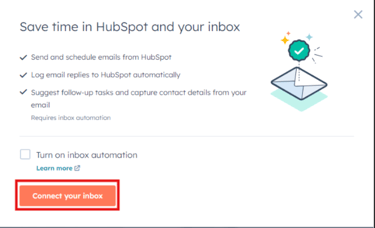
- Follow the prompts to Connect your Inbox
4. Authorize the Connection
- You’ll be redirected to log in to your email account and grant permission to HubSpot to access your email. This may require you to input your email credentials and follow any on-screen prompts to authorize the connection.
5. Configure Email Settings
- Once connected, configure your email settings:
- Log Emails: Toggle on this option if you want emails sent from HubSpot to be logged automatically.
- Track Emails: Enable this to track when recipients open your emails.
- Customize any additional settings as needed.
6. Verify Connection
- Send a test email to ensure that emails are logging and tracking correctly.
7. Troubleshoot Common Issues
- If your email does not connect, ensure that IMAP/SMTP settings are enabled in your email provider’s settings.
- For security issues, check your email provider’s app permissions and security settings.