
This SOP ensures that teams can efficiently access segmented lists of contacts for various marketing and sales initiatives, leading to more streamlined communication and follow-ups.
LOOM VIDEO: https://www.loom.com/share/18f4354446b14ae489d1e3399dea4b87
Context
This SOP provides a step-by-step guide on creating and managing Smart Views within HubSpot, allowing users to filter contacts based on specific criteria such as lifecycle stage, region, or recent activity. Efficient contact segmentation helps optimize the team’s outreach efforts.
Terminologies
- Smart View: A saved filter in HubSpot that allows users to quickly access a specific group of contacts based on predefined criteria.
- Lifecycle Stage: The stage at which a contact is in the customer journey (e.g., Lead, Marketing Qualified Lead, Customer).
Tools
- HubSpot: The platform used to create and manage Contact Smart Views.
Roles & responsibilities
- Team Member: Responsible for creating and maintaining Smart Views in HubSpot. Ensures that the views are up-to-date and relevant to the team’s needs.
- Approver: Reviews and approves Smart Views to ensure they align with business objectives.
Procedure
Create a step by step procedure to complete this process. Add Miro boards, screen recordings and images to provide a visual aid.
Step 1:
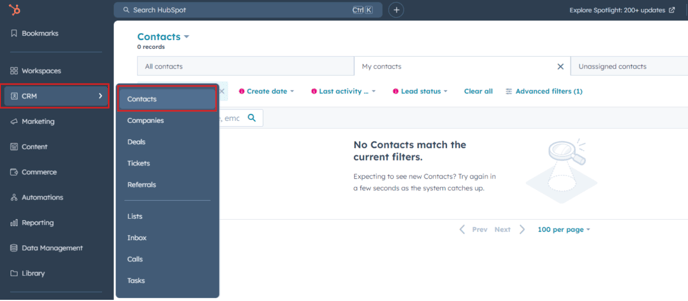
Navigate to the Contacts section in HubSpot by selecting CRM > Contacts from the left side.
Step 2:
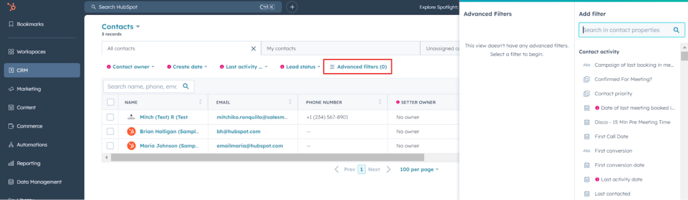
Click on the Filter option at the top of the contacts table.
Step 3:
Select your desired filters. These may include fields such as Lifecycle Stage, Date Last Contacted, Region, or any custom properties specific to your organization.
Step 4:
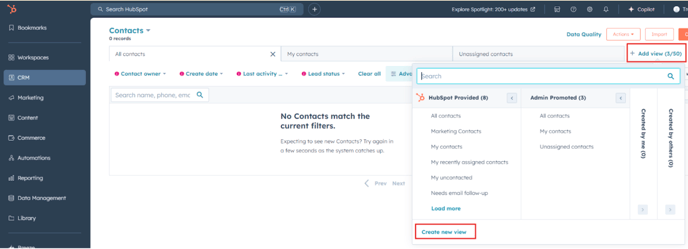
After selecting the filters, click Add view in the top-right corner then click Create new view
Step 5:
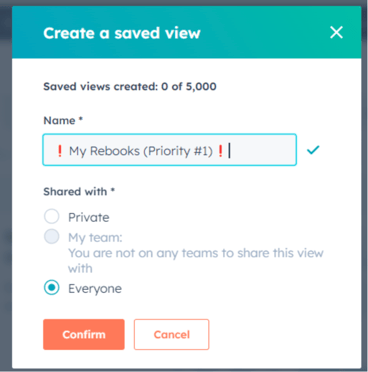
Name your Smart View and decide whether it should be visible to your entire team or just you.
Step 6:
Your Smart View is now ready! You can access it from the left-hand menu under Saved Filters.
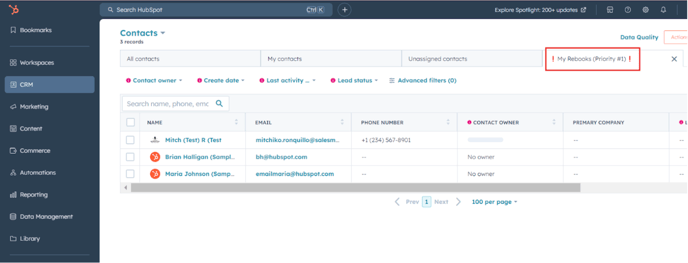
Standard Smart View Set Up
|
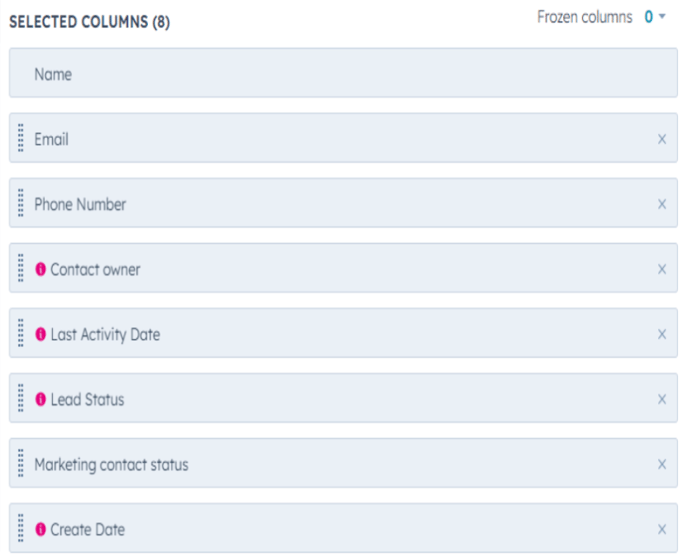
Name: “❗️My Rebooks (Priority #1)❗️” Description: This Smart View filters leads that require rebooking or follow-up due to missed or canceled appointments, and prioritizes those assigned to you. These leads are the top priority for daily follow-ups and rebooking efforts. |
|
|
Add Filters |
Edit Columns |
OR:
OR:
|
|
|
Name: “🆕New Leads (Priority #2)🆕” Description: This Smart View identifies new leads that are yet to be contacted, prioritizing those assigned to you. These leads require immediate outreach to ensure no opportunity is missed. |
|
|
Add Filters |
Edit Columns |
OR:
|
|
|
Name: “🔨In Progress - (Priority #3)🔨” Description: This Smart View filters leads that are currently in progress or marked as bad timing, prioritizing those assigned to you. These leads require continued engagement to move them forward in the sales process. |
|
|
Add Filters |
Edit Columns |
|
|
|
Name: “🔥Hot Leads (Priority #4)🔥” Description: This Smart View focuses on leads that have been contacted between 1 and 10 times but have not yet moved to the "In Progress" stage. These leads are still actively in play and require further attention to push them forward. |
|
|
Add Filters |
Edit Columns |
|
|
|
Name: “☀️Warm Leads (Priority #5) ☀️” Description: This Smart View highlights leads that have been contacted more than 10 times and are either in progress or in the prospecting stage. These leads are warmer and may require continued nurturing to close or move forward. |
|
|
Add Filters |
Edit Columns |
OR:
|
|
|
Name: “✅ My Completed Discos + No Closing Call Booked 🚫” Description: This Smart View identifies leads where a discovery call has been completed but no closing call has been booked. These leads require follow-up to ensure a closing call is scheduled and the sales process continues smoothly. |
|
|
Add Filters |
Edit Columns |
|
|
|
Name: “🎛️ My Sets (All) 🎛️” Description: This Smart View shows all leads assigned to you where the outcome of a closing call is already known. It provides a comprehensive overview of your set leads, allowing you to track their progress and manage follow-up actions as needed. |
|
|
Add Filters |
Edit Columns |
|
|
|
Name: “📅 My Upcoming Appointments 📅” Description: This Smart View highlights all upcoming appointments scheduled within the next 4 days for leads assigned to you, specifically where a discovery call is already scheduled. It helps you stay on top of your upcoming meetings and prepare accordingly. |
|
|
Add Filters |
Edit Columns |
|
|
|
Name: “👥 My Clients 👥” Description: This Smart View lists all leads assigned to you that have reached the lifecycle stage of Customer. It allows you to easily manage and engage with your existing clients to ensure ongoing satisfaction and potential upselling opportunities. |
|
|
Add Filters |
Edit Columns |
|
|