
This SOP will guide the user through the process of creating email templates in HubSpot. These templates allow for efficient, consistent communication that can be customized for various marketing or sales campaigns.
LOOM VIDEO: https://www.loom.com/share/563c338ea400415a94c5833c8531f88e?sid=656cedc9-0f98-4f9f-bf30-931de427f199
Context
Creating email templates enables quick and easy setup for automated or regular emails, saving time and ensuring brand consistency across communications.
Terminologies
Add any unfamiliar or domain specific words with their definitions here.
- Template: A pre-designed email layout that can be reused, allowing for consistent formatting and easy customization.
- Custom Properties: Dynamic fields that can be added to personalize emails, such as the recipient's name or company.
Tools
Add any relevant tools associated with this process.
- Hubspot : The platform used to create and manage email templates.
Roles & responsibilities
Define who will be executing the activities related to the SOP.
- Team Member: Responsible for creating, reviewing, and updating email templates as needed for marketing and sales campaigns.
- Approver: Reviews and approves templates to ensure alignment with brand guidelines and objectives.
Procedure
Follow the steps below to create an email template in HubSpot:
Step 1:
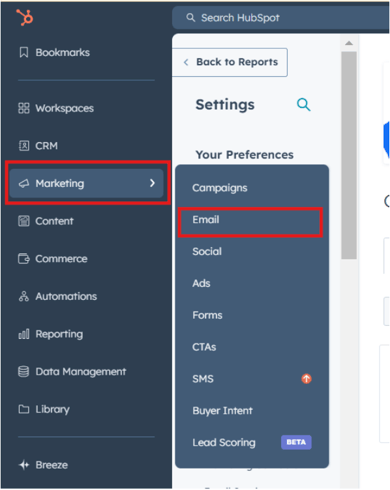
Navigate to the Marketing section, then select Emails.
Step 2:
Click Create Email. Choose whether this will be an Automated or Regular email.

Step 3:
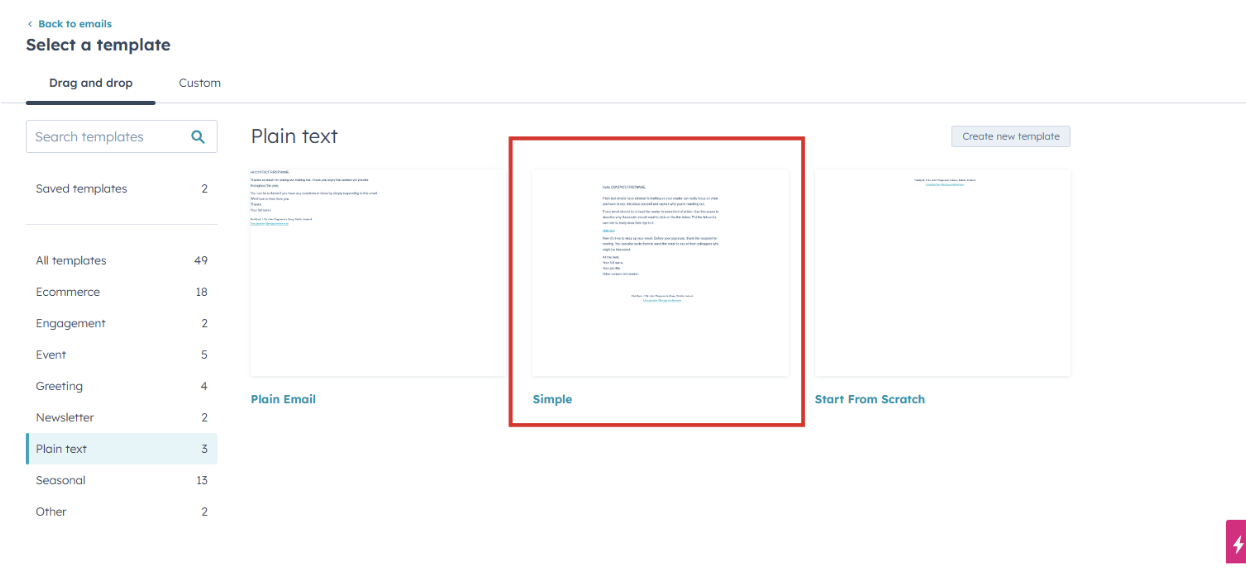
Choose a template. We typically use the Simple template for a clean, versatile design.
Step 4:
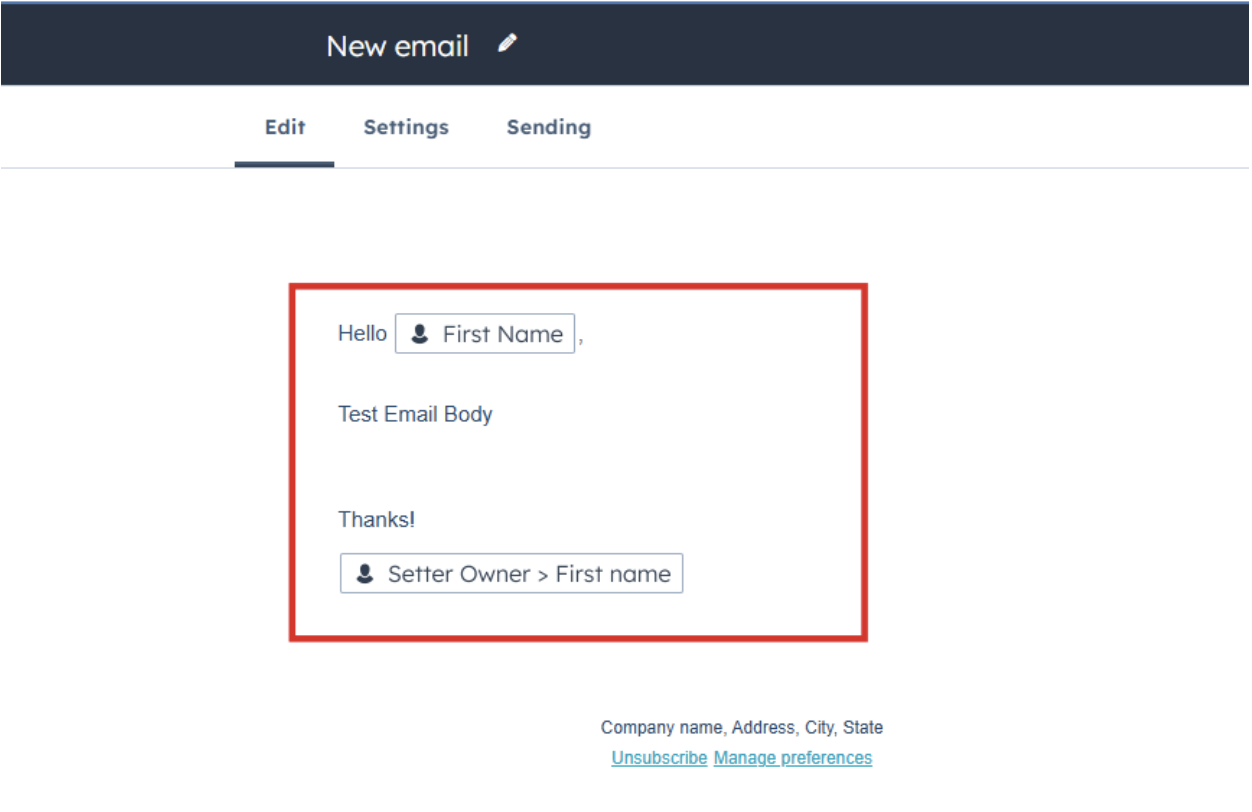
Create the email body by adding content such as text, images, buttons, and custom properties for personalization (e.g., First Name, Company).
Step 5:
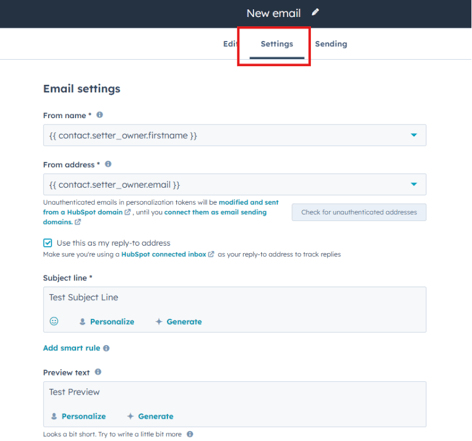
Navigate to Settings to configure the following:
- From Name: The name that will appear as the sender.
- From Email: The email address that will appear as the sender.
- Subject Line: A concise, engaging subject for the email.
- Preview Text (optional): Text that appears in the inbox preview, providing additional context.
Step 6:
Review the email to ensure it is correctly formatted, content is accurate, and settings are properly configured.
Step 7:
Once finalized, click Publish to save the template for future use.