This SOP facilitates scheduling individual meetings between team members and clients, ensuring a smooth booking process and effective communication.
LOOM VIDEO: https://www.loom.com/share/ef5b68388c284d0f97859e5189f9e078?sid=2c810025-1d78-4291-90a4-1e74381004d3
Context
- One-on-One meeting links allow users to schedule direct meetings with specific individuals. This is particularly useful for sales calls, client consultations, or team check-ins.
Terminologies
- One-on-One Meeting: A direct meeting scheduled between two participants, usually focused on specific topics or discussions.
- Meeting Link: A unique URL generated for scheduling a meeting that participants can click to join.
Tools
- HubSpot: The platform used to create and manage Round Robin meeting links.
- Zoom: If the meeting location is Zoom
- Google Meet: If the meeting location is Google Meet
Roles & responsibilities
- Team Member: Responsible for setting up and managing One-on-One meeting links, ensuring they are configured correctly and kept up-to-date.
- Approver: Reviews and approves the meeting setup to ensure alignment with team objectives.
Procedure
Follow the steps below to create a One-on-One meeting link:
Step 1:
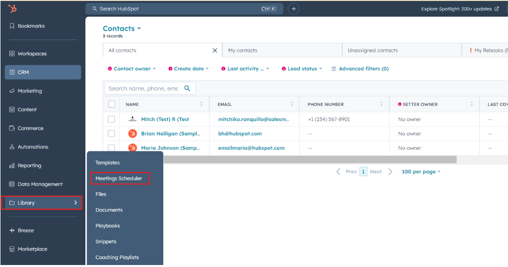
Navigate to the Meeting Scheduler section by selecting Library > Meeting Scheduler from the left side.
Step 2:
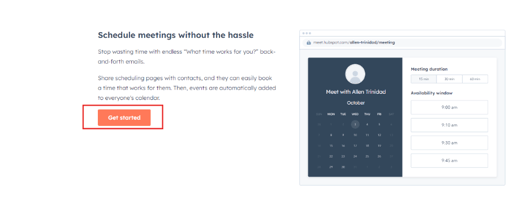
Click Get Started with meetings.
Step 3:
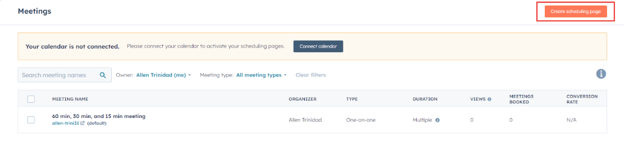
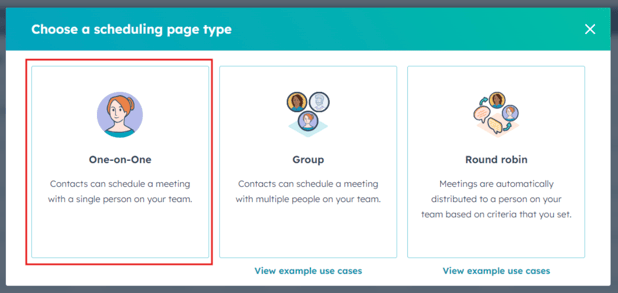
Click on Create scheduling page and select One-on-One as the meeting type
Step 4:
Set the following details:
- Internal Name
- Organizer
- Event Title
- Location
- Turn on Cancel and Reschedule if you want to provide the option for the lead to cancel or reschedule the meeting.
- Add a description if applicable.
- Choose a meeting type.
- THIS IS ESPECIALLY IMPORTANT IF THIS IS A CALL YOU WANT TO BE APART OF A SPECIFIC CALL BOOKING WORKFLOW like DEAL CREATION or MEETING REMINDERS.
- Ex: Deal Creation/ updating
- Ex: Stamp First & Recent Booking & Schedule Dates & Charlie AI Activation
Step 5:
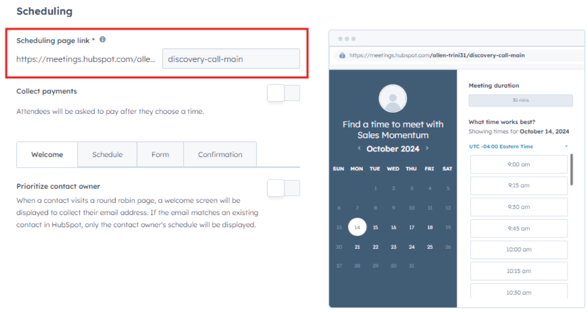
Set the Meeting URL Slug. Note: This is external-facing, and we cannot change this URL once it’s created.
Step 6:
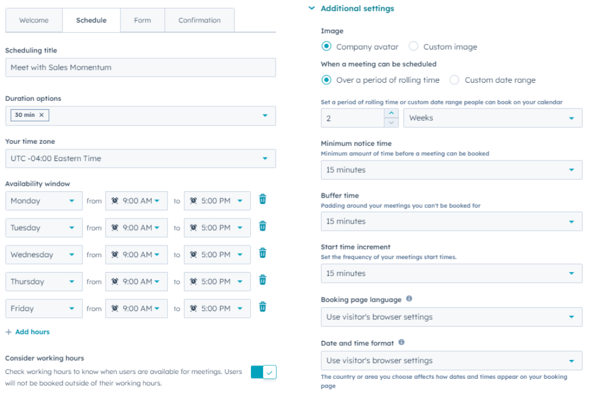
Set the meeting duration, availability, and any specific settings related to the Round Robin process (e.g., buffer times between meetings).
Step 7:
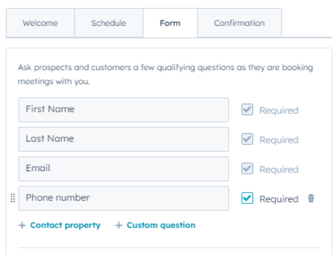
Set a few qualifying questions for leads as they book meetings with you.
Step 8:
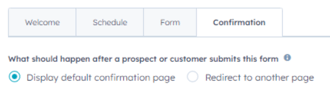
Set the redirect links if you want the lead to be redirected to a specific page after they book a call.
Step 9:
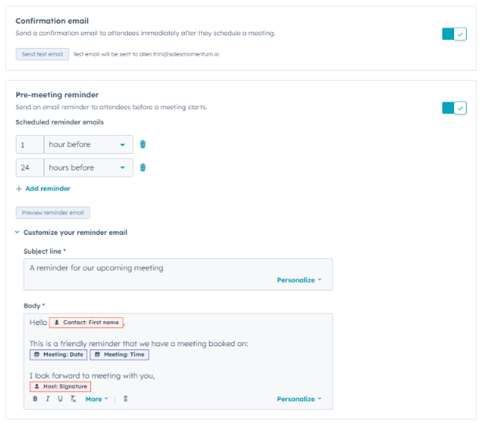
Set up a Confirmation email and Pre-meeting reminder, and customize the email as needed.