This SOP facilitates scheduling meetings with multiple team members, ensuring that all attendees have equal opportunity to participate and reducing the back-and-forth in scheduling.
LOOM VIDEO: https://www.loom.com/share/d1b645b5d5f444f9953a1671c6c49f37?sid=3c100900-142c-4d5b-9327-ddb9e2382396
Context
- Round Robin meeting links allow users to distribute meeting requests evenly among a set of participants. This is particularly useful for sales teams, support teams, or any group that requires fair distribution of appointments based on availability.
Terminologies
- Round Robin: A method of distributing meeting requests among multiple participants in a rotating manner, ensuring that everyone gets equal opportunities.
- Meeting Link: A unique URL generated for scheduling a meeting that participants can click to join.
Tools
- HubSpot: The platform used to create and manage Round Robin meeting links.
- Zoom: If the meeting location is Zoom
- Google Meet: If the meeting location is Google Meet
Roles & responsibilities
- Team Member: Responsible for setting up and managing Round Robin meeting links, ensuring they are configured correctly and kept up-to-date.
- Approver: Reviews and approves the meeting setup to ensure alignment with team objectives.
Procedure
Follow the steps below to create a Round Robin meeting link:
Step 1:
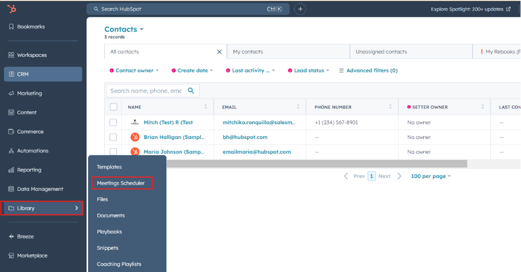
Navigate to the Meeting Scheduler section by selecting Library > Meeting Scheduler from the left side.
Step 2:
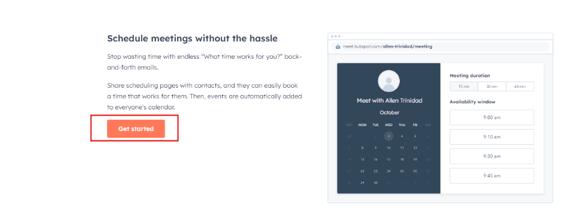
Click Get Started with meetings.
Step 3:
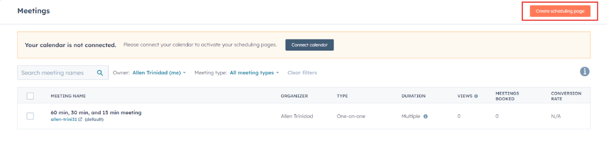
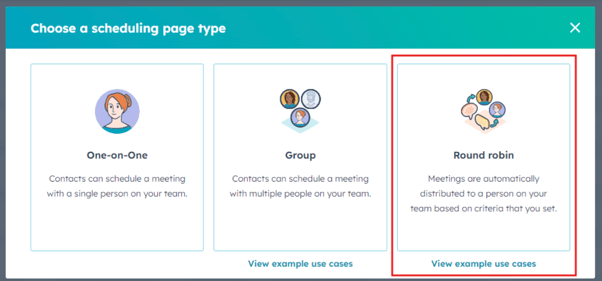
Click on Create scheduling page and select Round Robin as the meeting type
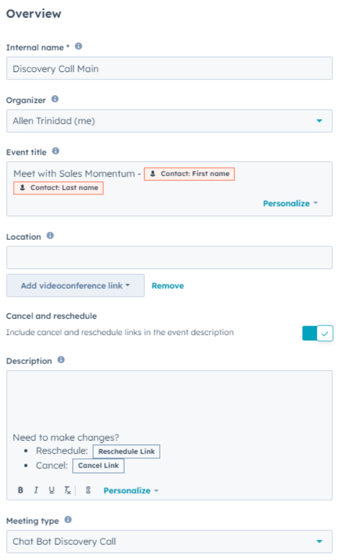
- Set the following details:
-
- Internal Name
- Organizer
- Event Title
- Location
- Turn on Cancel and Reschedule if you want to add the option for the lead to cancel or reschedule the meeting.
- Add a description if you have any meeting description.
- Choose a meeting type.
Step 5:
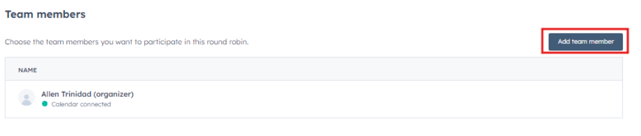
Add participants by selecting team members who will be included in the Round Robin scheduling, by clicking the ‘’Add team member’’ tab. Ensure that all team members have their availability set correctly in the tool.
To remove participants from the team member, just hover over your mouse on the name of the participant you want to remove and click ‘’Remove’’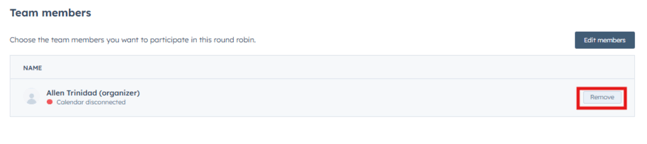
Step 6:
Set the Meeting URL Slug. Note: This is external-facing, and we cannot change this URL once it’s created.
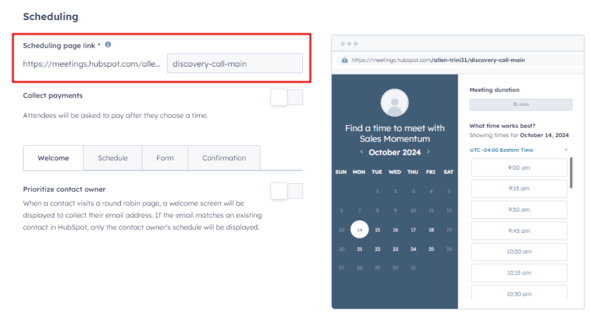
Step 7:
Turn on Prioritize Contact Owner if you want the meeting link to schedule with the Contact Owner. If the email matches an existing contact in HubSpot, only the contact owner's schedule will be displayed.
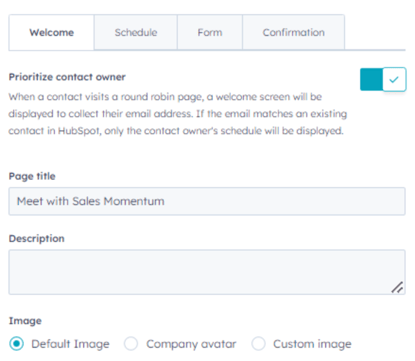
Step 8:
Set the meeting duration, availability, and any specific settings related to the Round Robin process (e.g., buffer times between meetings).
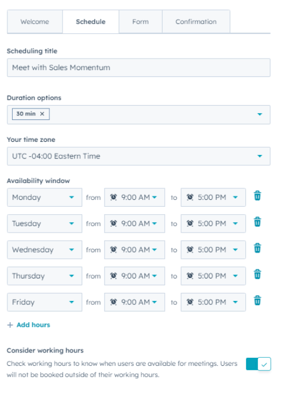
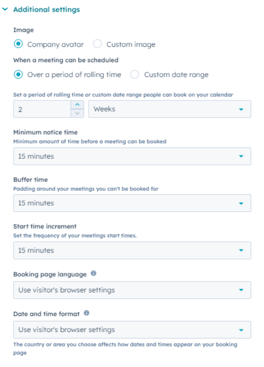
Step 9:
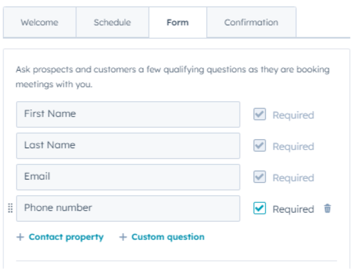
Set a few qualifying questions for leads as they book meetings with you.
Step 10:
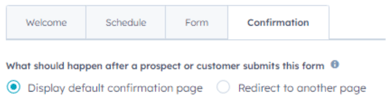
Set the redirect links if you want the lead to be redirected to a specific page after they book a call.
Step 11:
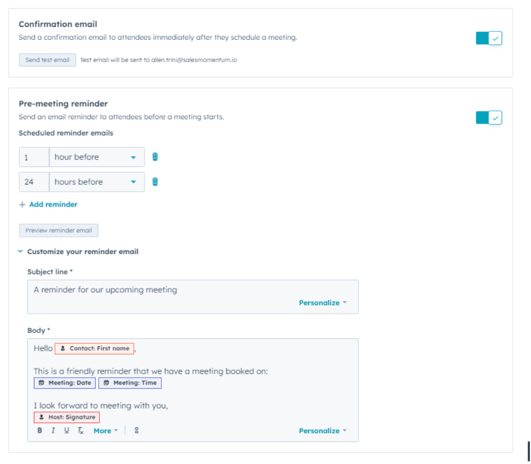
Set up a Confirmation email and Pre-meeting reminder, and customize the email as needed.