
This SOP will guide users through the process of creating sync properties in HubSpot. Sync properties help ensure data consistency across different objects, making it easier to manage and update related information.
Context
Sync properties allow for the automatic transfer of data between related objects within HubSpot, facilitating a seamless flow of information and reducing manual data entry.
Terminologies
- Independent Property: The original property that holds data to be synced.
- Dependent Property: The property that receives data from the independent property.
- Property Sync: A feature that links properties so data can be shared between them.
Tools
Add any relevant tools associated with this process.
- Hubspot - Used for creating and managing properties.
Roles & responsibilities
Define who will be executing the activities related to the SOP.
- Team Member: Responsible for setting up and managing property syncs.
- Approver: Reviews and approves the sync property configuration.
Procedure
Follow these steps to create a sync property on HubSpot:
Step 1:
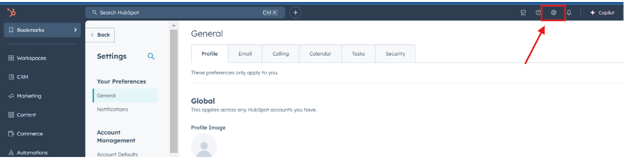
Navigate to Settings in HubSpot.
Step 2:
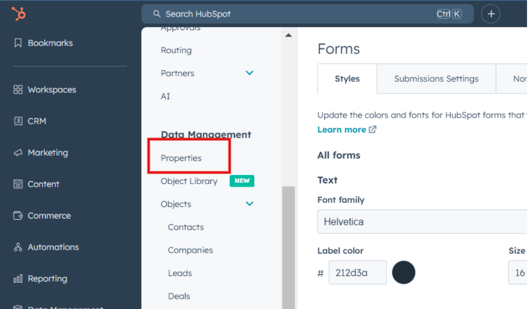
Select Properties from the settings menu.
Step 3:
Click Create Property to start creating the independent property.
Step 4:
Enter the following details for the independent property:
- Property Label: Name the property.
- Object Type: Select the object type (e.g., Contact, Company).
- Group: Choose the relevant group for the property.
- Description: Provide a brief description of the property.
Step 5:
Set up the Field Type as needed (e.g., single-line text, dropdown).
Step 6:
Click Create to save the independent property.
Creating the Dependent Property for Sync
Step 7:
Click Create Property again to start creating the dependent property.
Step 8:
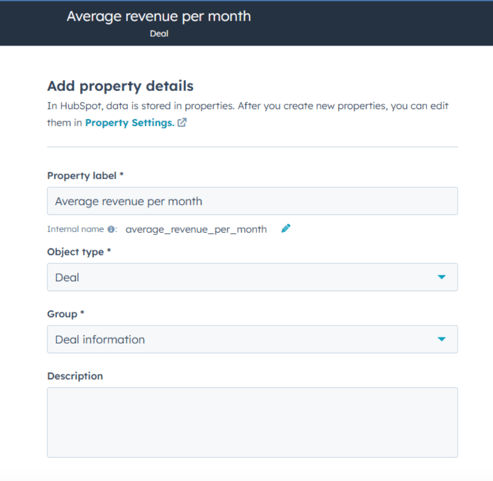
Enter the following details for the dependent property:
- Property Label: Name the property.
- Object Type: Select the object type (same as or different from the independent property).
- Group: Choose the relevant group for the property.
- Description: Provide a description that explains its link to the independent property.
Step 9:
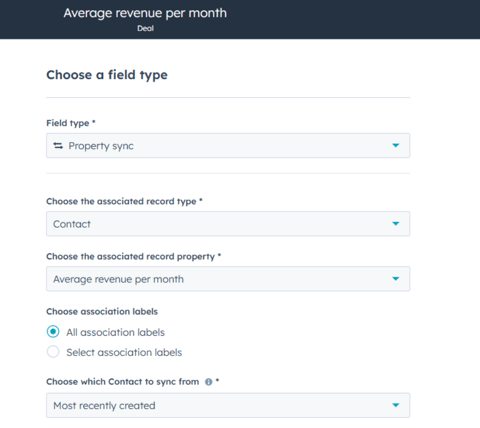
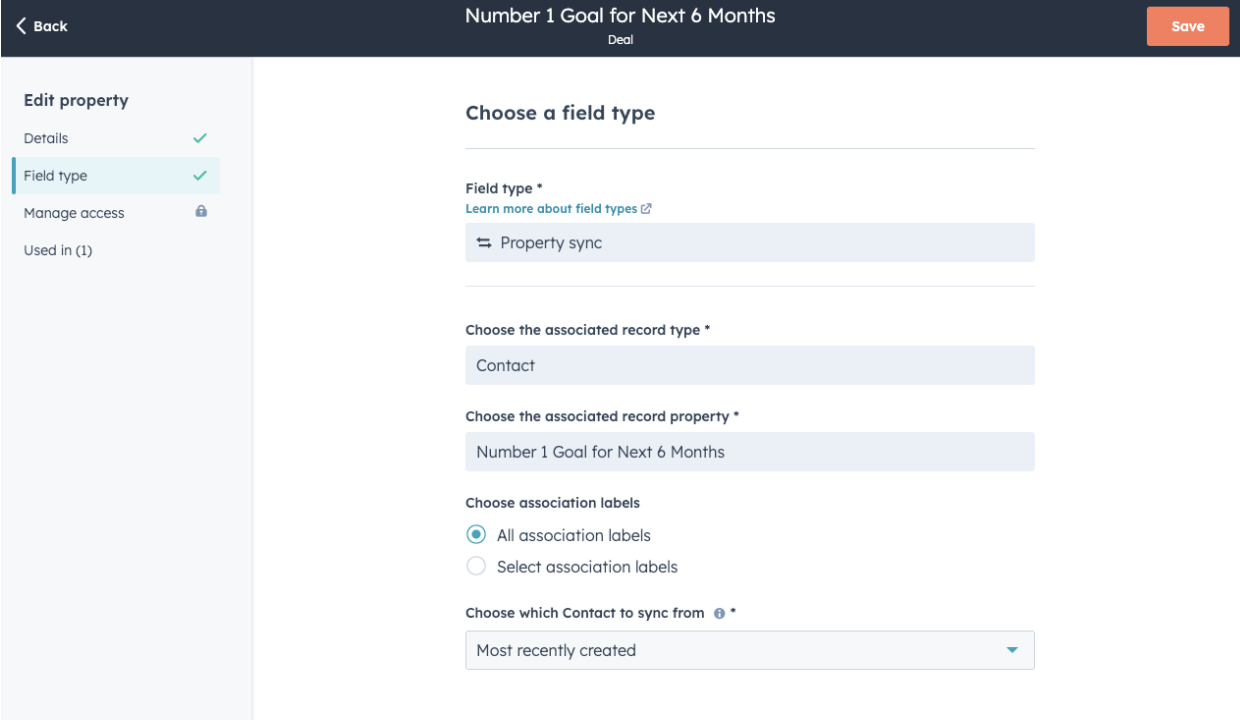
Set the Field Type as Property Sync.
Step 10:
Search for the Object Type of the independent property you created earlier.
Step 11:
Search for and select the specific property from the associated record that you want to sync with.
Step 12:
Click Create to save the dependent sync property.
Below is an example of a DEAL sync property that is using a contact property to sync from
Notes
- Verify that both properties are configured correctly by checking data flow after setup.
- Regularly monitor and update properties to align with changes in data structure needs.