
The purpose of this SOP is to guide users through the process of editing the default view for deals in HubSpot. Customizing the deal view helps sales teams access key information more efficiently, improving workflow and decision-making.
Context
The default deal view determines what information is displayed when viewing a deal record. Customizing this view ensures that users can quickly see the most relevant details needed for their sales processes.
Terminologies
- Default View: The standard layout for a deal record, showing selected properties and data.
- Card: A customizable section in the deal record that holds grouped properties.
Tools
Add any relevant tools associated with this process.
- Hubspot - Used for creating and managing properties.
Roles & responsibilities
Define who will be executing the activities related to the SOP.
- Team Member: Responsible for updating the deal default view.
- Approver: Reviews and approves the default view layout.
Procedure
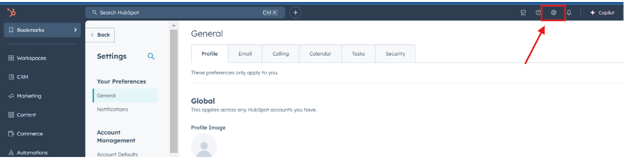
Step 1:
Navigate to Settings in HubSpot.
Step 2:
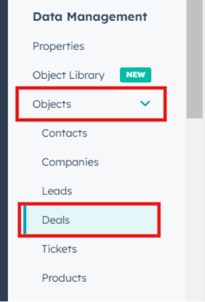
Select Objects from the settings menu and choose Deals.
Step 3:
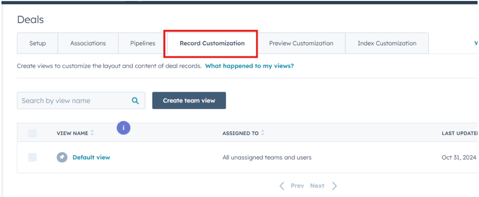
Click on Record Customization under the Deals settings.
Step 4:
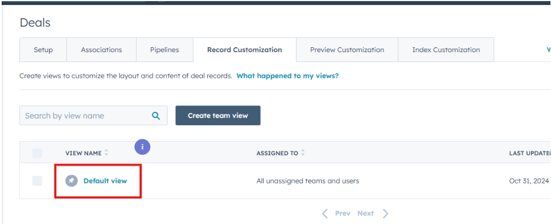
Select Default View to access the customization options for the deal layout.
Step 5:
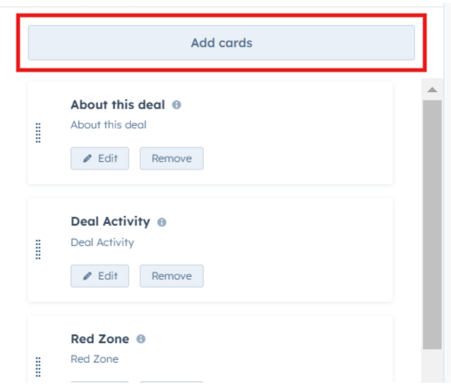
On the left-hand side, click Add Card to create a new card for displaying properties.
Step 6:
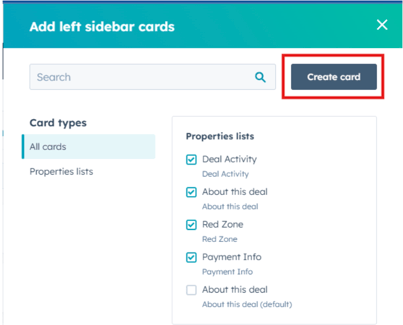
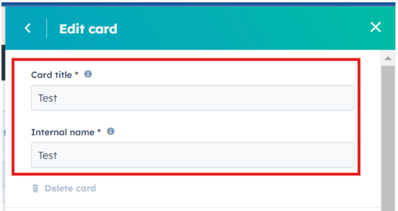
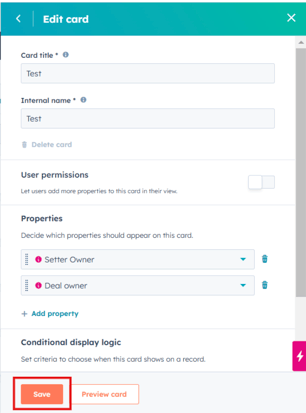
Click Create Card and enter a Card Title and Internal Name for identification.
Step 7:
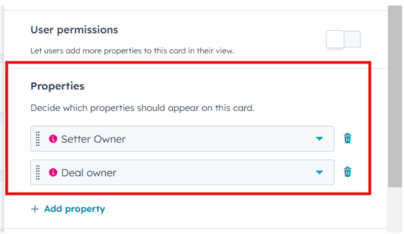
Add the necessary Properties to the card by selecting them from the property list.
Step 8:
Click Save to confirm and add the new card to the deal default view.
Notes
- Cards can be rearranged within the view by dragging and dropping them to different positions.
- Periodically review the default view layout to ensure it aligns with current sales strategies and team requirements.