
Guide to enable users to access and test upcoming HubSpot features by enrolling in Beta programs, ensuring early adoption and feedback opportunities.
Context
HubSpot regularly releases Beta features to allow users to test and explore new functionalities before their general availability. This helps teams stay ahead with tools that can improve processes and workflows. Only users with admin privileges can enable Beta features for the entire account.Terminologies
- Beta Program: A testing phase where HubSpot allows users to try new features before the official release.
- Entire Account Enrollment: Allows all account users to access the Beta feature.
- Only Me Enrollment: Restricts the Beta feature to the enrolling user only.
Tools
Roles & responsibilities
- Admin User: Responsible for enrolling the entire account or specific users into Beta features and monitoring their impact.
- Team Members: Responsible for testing and providing feedback on the Beta feature's functionality.
Procedure
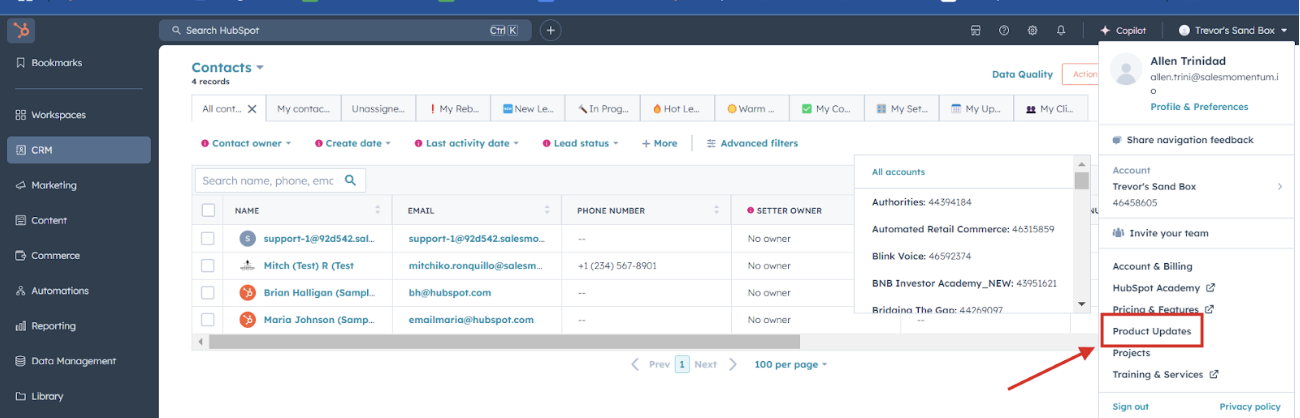
Step 1: Access Product Updates
1. Log in to your HubSpot account.2. Click your Account Menu (profile picture or company logo) in the top-right corner.

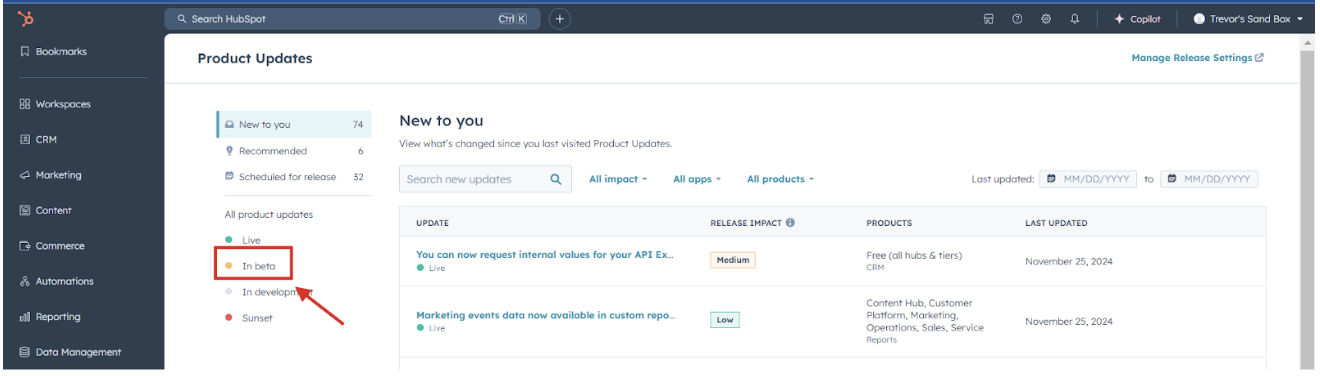
Step 2: Navigate to Beta Programs
- In the Product Updates section, click on the Beta tab.
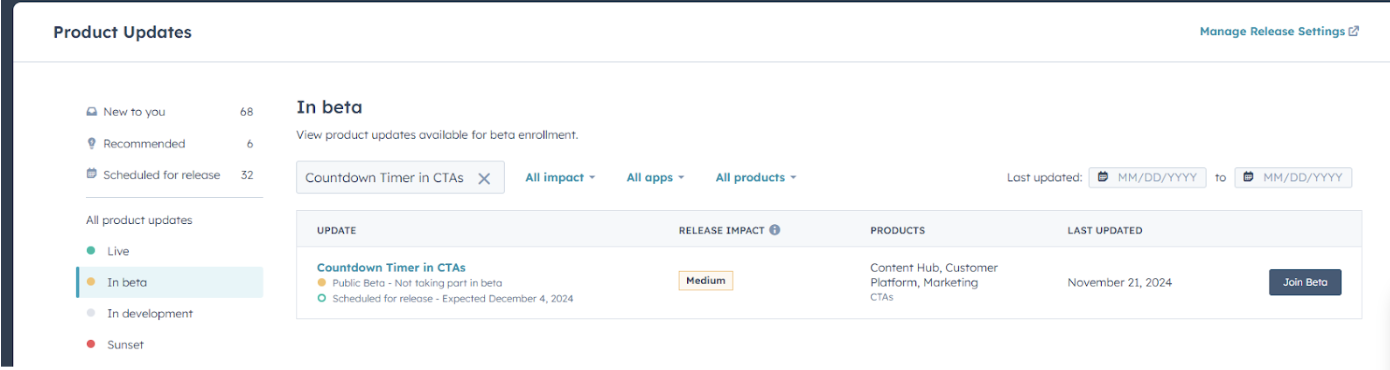
Step 3: Search for the Beta Feature
- Use the search bar to locate the desired Beta feature (e.g., Countdown Timer in CTAs).
Step 4: Join the Beta Program
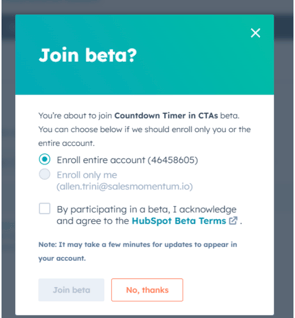
1. Click the Join Beta button next to the desired Beta feature.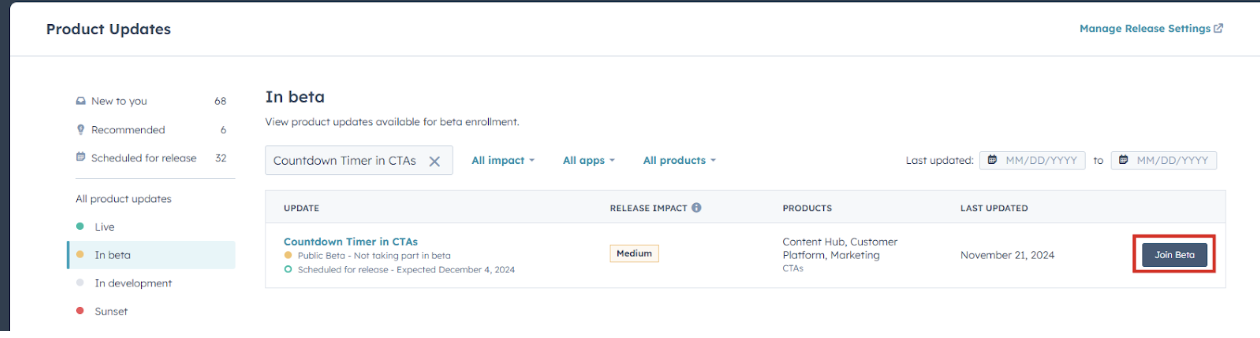
-
- Entire Account: Enables the feature for all users.
- Only Me: Restricts the feature to your account.
Step 5: Accept the Beta Terms
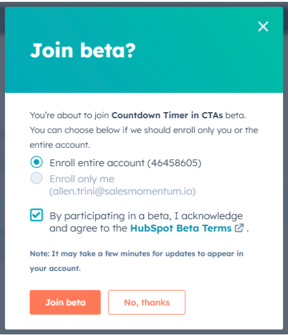
- Review the HubSpot Beta Terms.
- Click I Agree to accept the terms.
Step 6: Confirm Enrollment
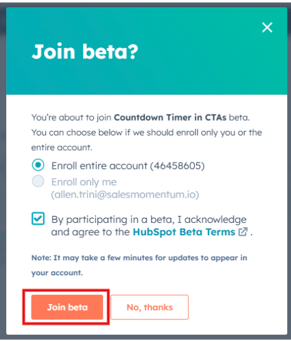
- Click Join Beta to finalize.
Notes
- Beta features may contain bugs or unfinished elements. Always test in non-critical workflows first.
- Provide feedback via HubSpot’s Beta tools to contribute to improvements.
- To opt out, revisit the Beta tab and select Leave Beta for the feature.