How to Set Up Conditional Logic on HubSpot Properties
Guide to create dynamic property fields that adapt based on user input, ensuring streamlined data collection and improved data quality.
Context
Conditional logic in HubSpot allows users to display dependent property fields only when specific criteria are met. This is particularly useful for forms, workflows, and record properties, making them more intuitive and reducing unnecessary input fields.
Terminologies
- Conditional Logic: A feature that determines which property fields to display based on the user's selection in another field.
- Dependent Properties: Fields displayed only when the conditions set by the logic are met.
- Property: A field in HubSpot used to store specific data about contacts, companies, deals, or tickets.
Tools
Roles & responsibilities
- Admins: Responsible for creating and testing conditional logic.
- End Users: Ensure accurate data entry when filling out forms or records.
Procedure
Step 1: Access Property Settings
- Log in to your HubSpot account.
- Navigate to Settings in the main navigation bar.
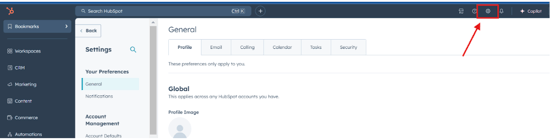
- In the left-hand menu, select Properties under the Data Management section.
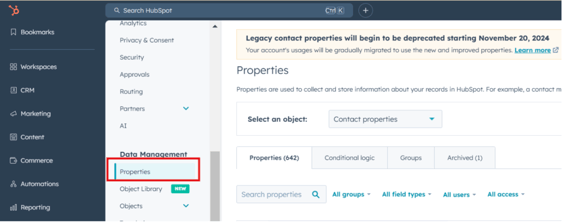
Step 2: Create Conditional Logic
- Click Conditional Logic and click Create logic
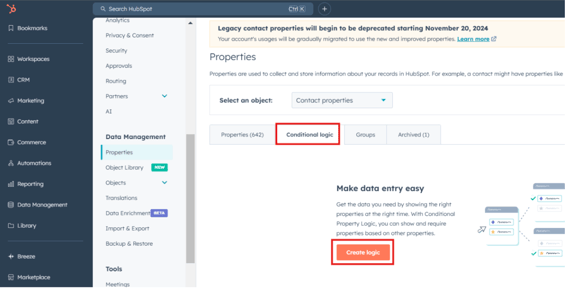
Step 3: Configure the Logic
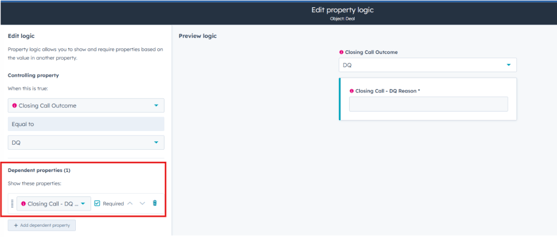
- Choose the Trigger Property: Select the property that will determine when the dependent fields appear.
- Set the Trigger Condition: Specify the condition (e.g., a selected option or value).
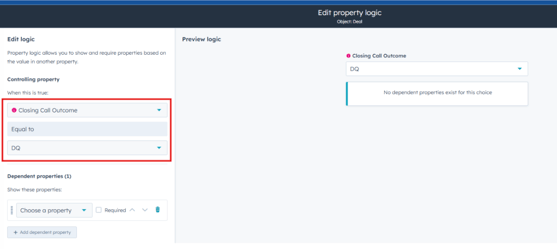
Step 4: Add Dependent Properties
- Click Add Dependent Properties.
- Select the fields that should appear when the trigger condition is met.
Step 5: Save the Logic
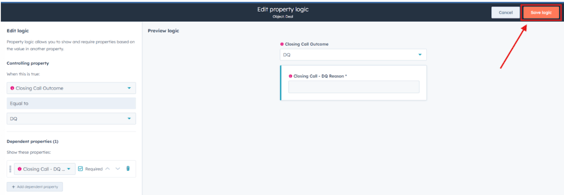
- Review the logic setup to ensure accuracy.
- Click Save to apply the conditional logic.
Notes
- Test the logic to verify that dependent properties display correctly.
- Conditional logic is applied automatically in forms, records, or workflows where the property is used.
- Changes to logic may affect data entry for existing records—review before making updates.
