
This SOP explains the process for updating the HubSpot calendar meeting URL to create a custom slug, ensuring a cleaner and more professional external-facing link (e.g., for website booking, email campaigns, etc.).
Context
By updating the meeting URL, you can customize the booking experience for leads, customers, and prospects, making the URL more recognizable and aligned with your brand. This is useful for sending booking links in marketing emails, sales outreach, or directly on your website.Terminologies
- Slug: The customizable part of a URL that typically represents a specific page or link.
- Meeting URL: The link used to schedule meetings through HubSpot's calendar system.
Tools
Roles & responsibilities
- Marketing Team: Ensure the new URL slug aligns with the company’s branding for a clean user experience.
- Sales Team: Use the updated meeting link in outreach communications.
- Admin/HubSpot Specialist: Manage the settings and update the URL slug as needed.
Procedure
Step 1: Navigate to Calendar Settings
1. In HubSpot, go to Settings.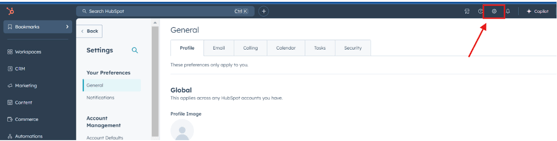
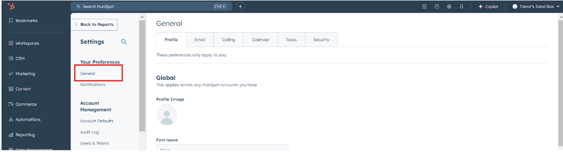
3. Look for Calendar section.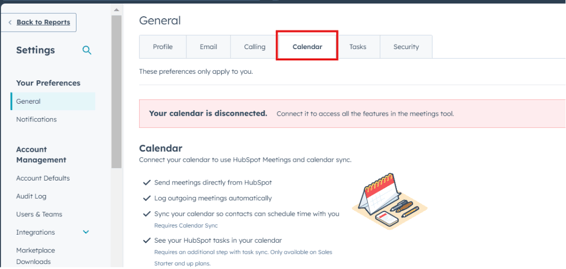
Step 2: Update the Meeting URL Slug
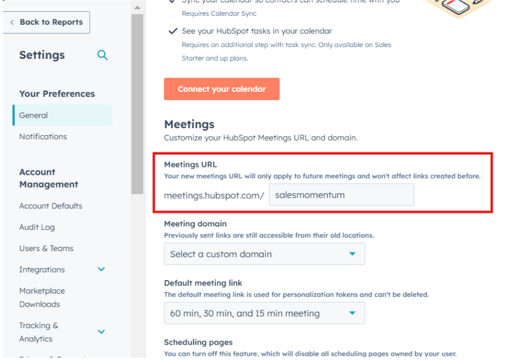
- Under the Meeting URL section, you’ll see the default slug that HubSpot generates.
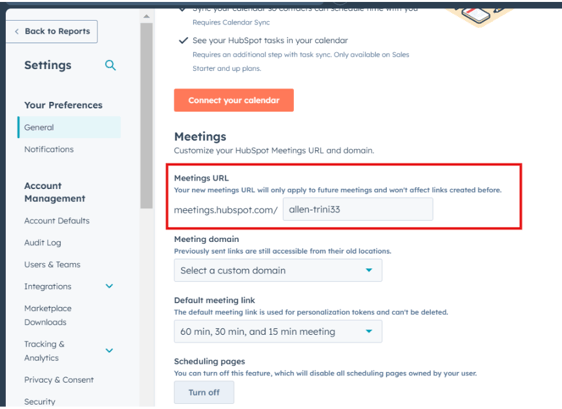
3. Enter your desired custom slug (e.g., "salesmomentum", "sales-momentum"). This will be part of the URL after the domain.
Step 3: Save Changes
- Once the custom slug is entered, click Save to update the URL.
Step 4: Review the New URL
- After saving, navigate to a page where the meeting link is used to confirm the updated URL is visible and works correctly.
- Test the booking link to ensure it functions as expected.
Notes
- Ensure that the slug is simple, easy to remember, and relevant to the meeting type (e.g., "demo-booking" or "sales-call").
- Be mindful that once the slug is updated, the old URL will no longer work, so make sure any old links are replaced in emails, websites, and workflows.