
To ensures the member’s access and permissions are properly removed to maintain data security and operational integrity.
LOOM VIDEO: https://www.loom.com/share/c55733086c374e49bc55c335b249efd4?sid=b0736122-0251-48b5-963a-976cff073df6
Context
- Offboarding a sales team member involves several critical steps to ensure that their access to HubSpot is terminated appropriately, and any responsibilities or assets are reassigned as needed.
Terminologies
- Sales Seat: A license that grants users access to specific sales tools and functionalities within HubSpot.
- Teams: Groups of users within HubSpot that can be assigned specific permissions and roles.
- Round Robin Meeting Links: Meeting links that distribute appointments evenly among team members.
Tools
- HubSpot: The platform used for managing sales team members and their access.
Roles & responsibilities
- Team Member: Responsible for following the offboarding procedure and ensuring all access and permissions are removed.
- Approver: Reviews the offboarding process to ensure compliance and completeness.
Procedure
Follow the steps below to offboard a sales team member on HubSpot:
Step 1:
Remove Sales Seat
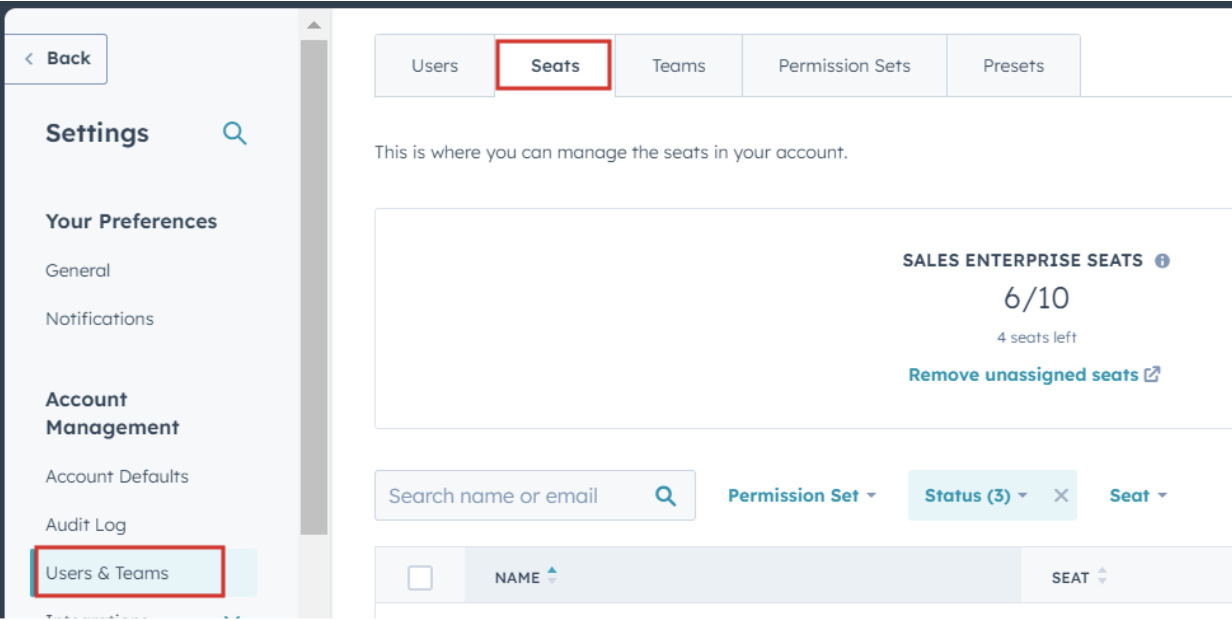
- Navigate to the Settings section by clicking on the gear icon in the top right corner of HubSpot.
- Go to Users & Teams under the Account Settings then click Seats
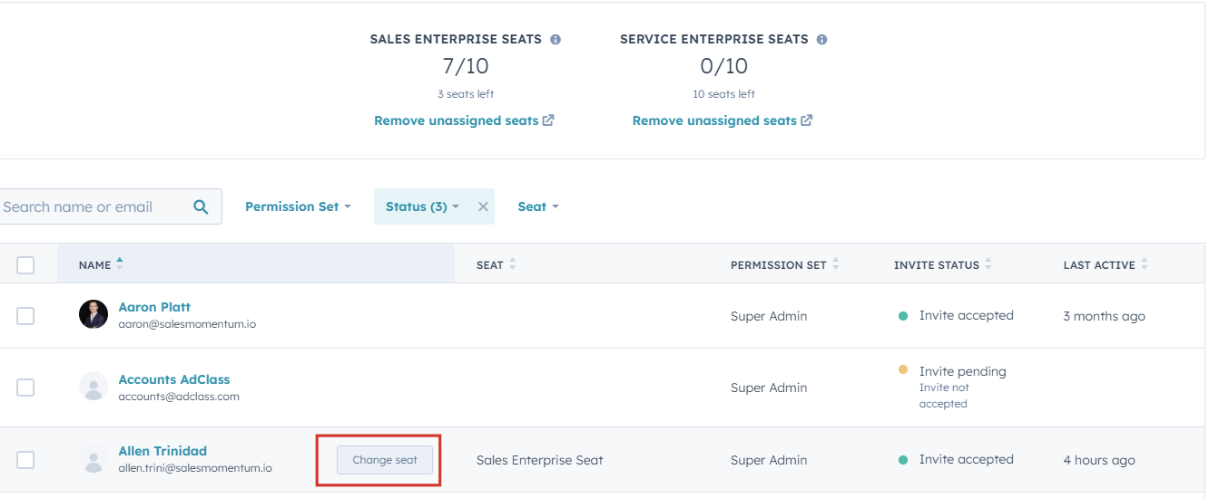
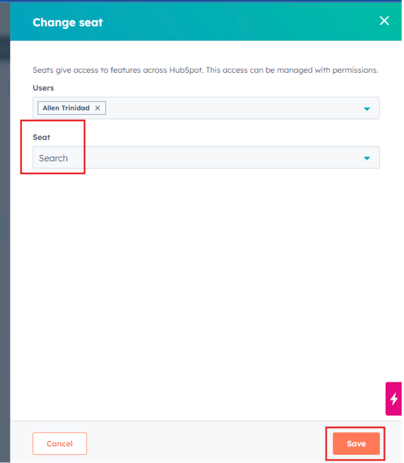
- Locate the team member’s profile and click on Change Seat
- Select Remove Sales Seat to revoke their access to sales functionalities
Step 2:
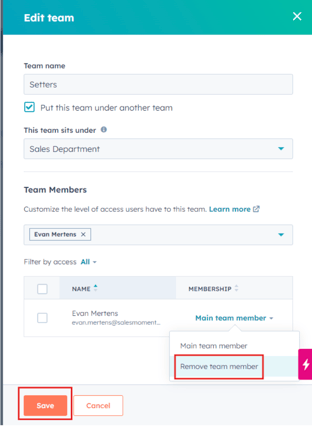
Remove from Teams
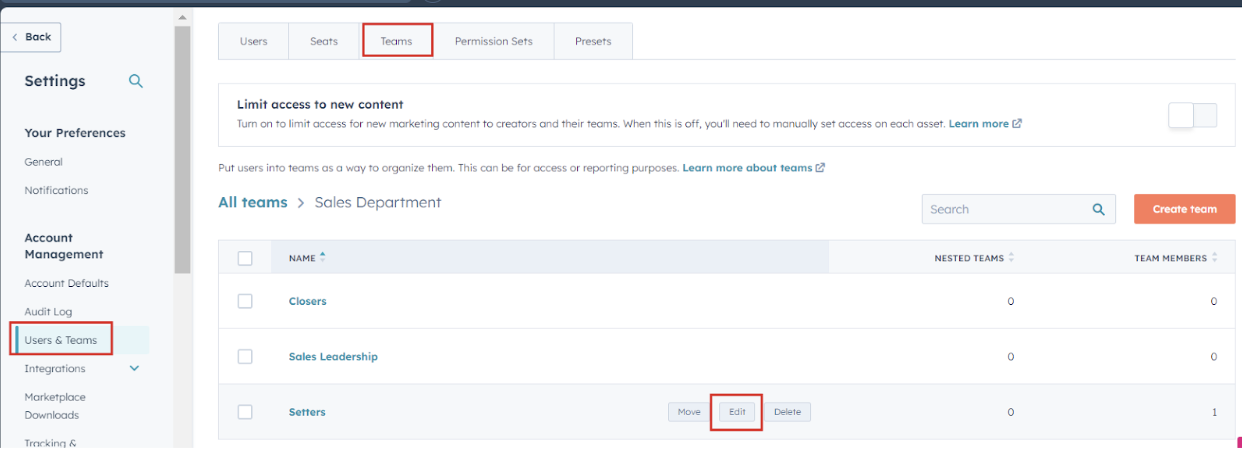
- Still in the Users & Teams section, click on Teams and find the user’s profile on specific teams
- Click on Edit Teams and remove them from any teams they are part of.
Step 3:
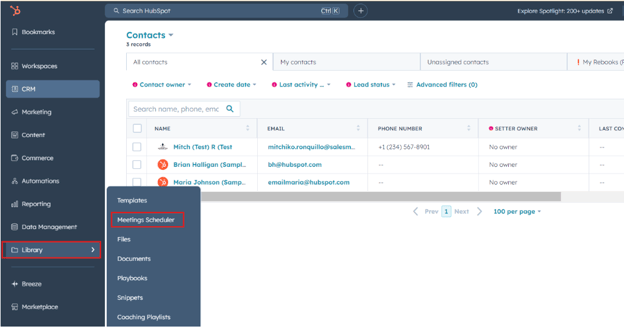
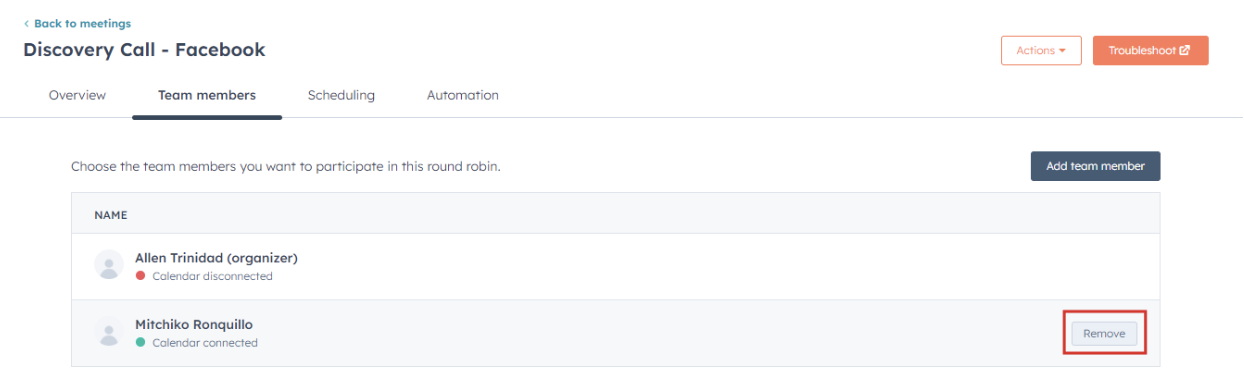
Remove from Round Robin Meeting Links
- Navigate to the Meeting Links section in the scheduling tool by navigating to Library > Meeting Scheduler
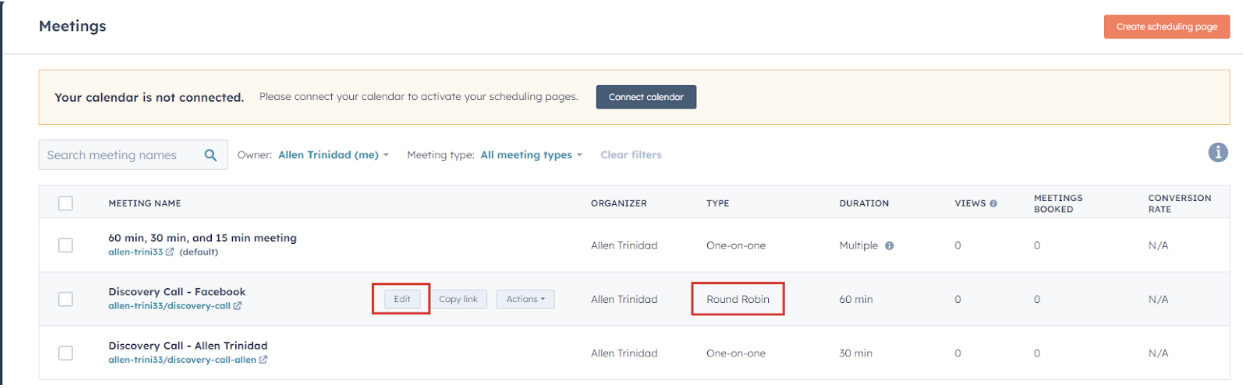
- Find any Round Robin meeting links that include the user.
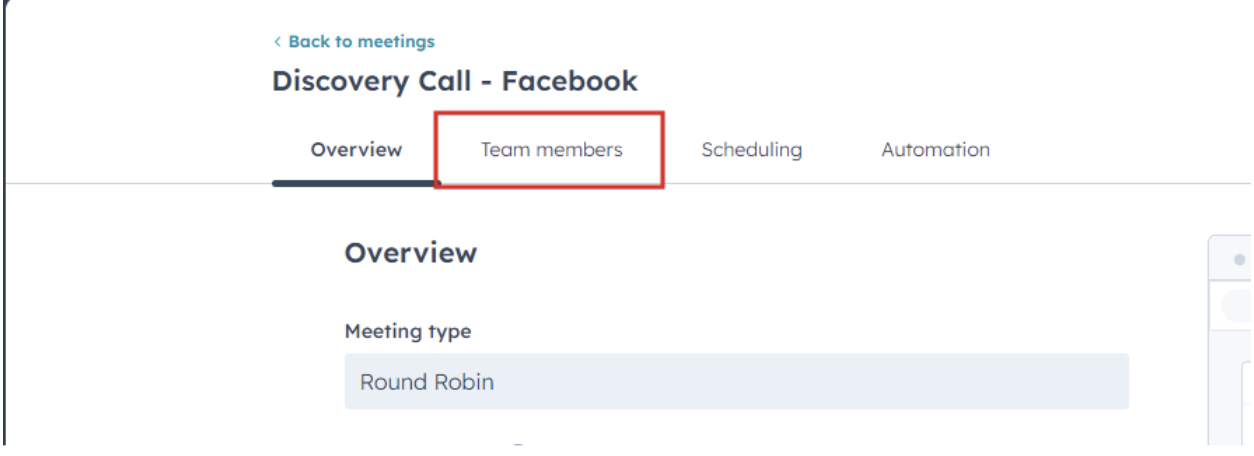
- Edit the meeting links and remove the user from the participant list.
Step 4:
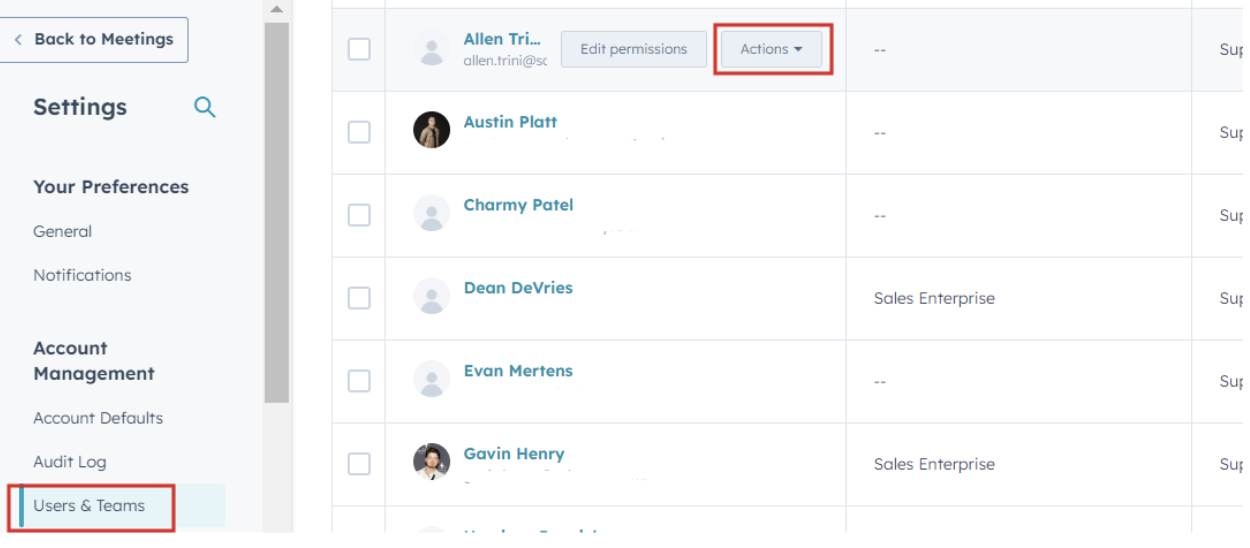
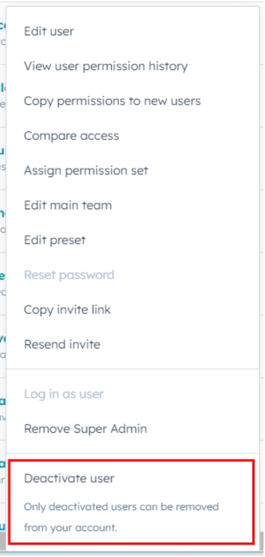
Deactivate User in HubSpot
- Return to the Users & Teams section.
- Find the user’s profile and select Deactivate.
- Confirm the deactivation to finalize the process.
Step 5:
Notify Relevant Parties
- Inform team members and management about the offboarding to ensure any necessary follow-up actions are taken regarding their responsibilities.
Final Notes
- Ensure that any assigned tasks, responsibilities, or leads are transferred to other team members as needed. It may also be beneficial to hold a brief meeting to discuss the transition of responsibilities.