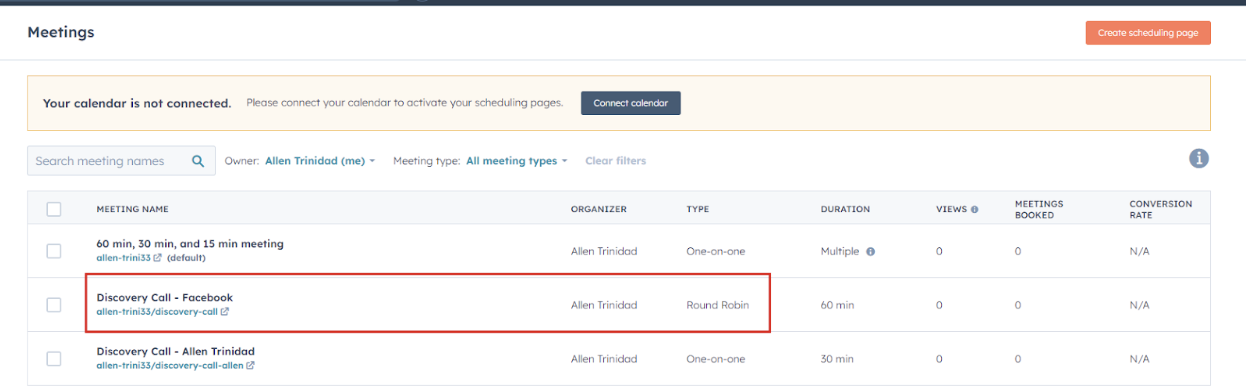
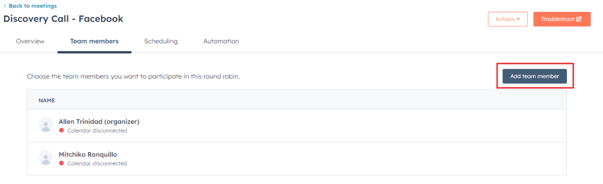
For new team members to have the necessary access and tools to effectively engage with leads and manage sales activities. This can be sent to the client if they’re offboarded.
LOOM VIDEO: https://www.loom.com/share/f22e3072b61c49dfba47bb797d8f49b5?sid=8945c139-9d98-4a42-a054-ac1f78175d32
Context
- This SOP provides a step-by-step guide for onboarding new sales team members, including inviting them to HubSpot, assigning necessary permissions, and connecting relevant tools to facilitate their workflow.
Terminologies
- Sales Seat: A designated role within HubSpot that provides access to sales tools and features.
- Meeting Links: Unique URLs generated for scheduling meetings with leads.
Tools
- HubSpot: The platform used for managing sales activities and communication.
Roles & responsibilities
- Team Member: Responsible for completing the onboarding process for new sales team members and ensuring they have the necessary tools and access.
- Approver: Reviews the onboarding process to ensure compliance with team standards.
Procedure
Follow the steps below to onboard an additional sales team member on HubSpot:
Step 1:
Invite to HubSpot
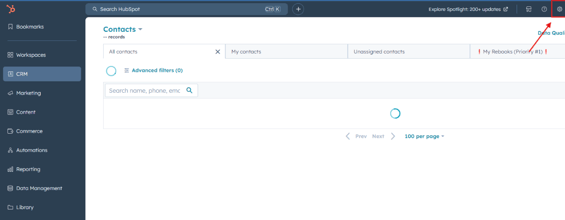
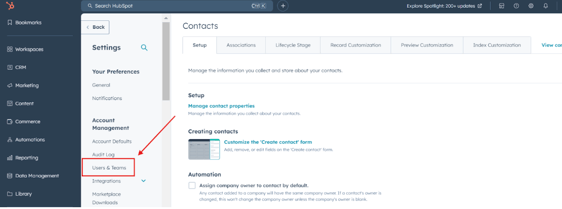
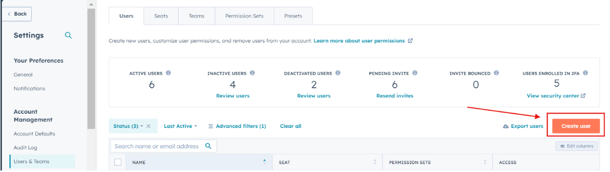
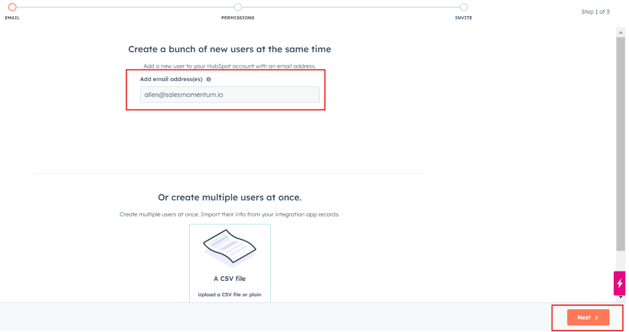
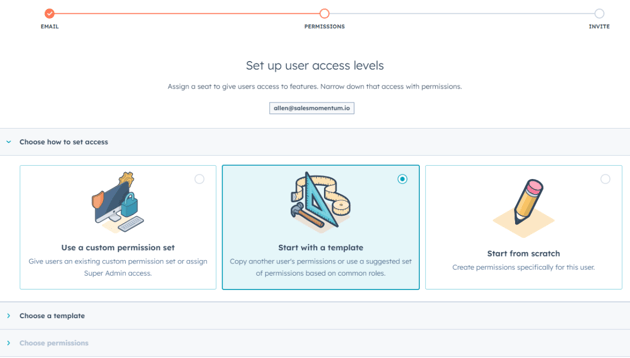
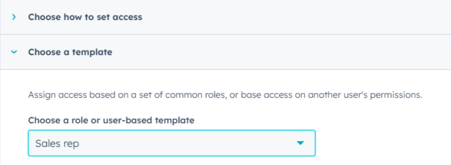
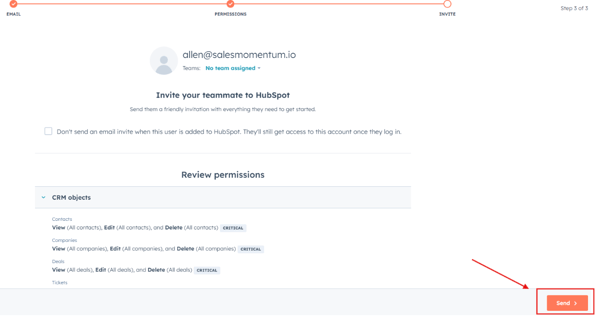
Go to Settings > Users & Teams, and click Invite User. Enter the new member's email address and assign them a role.
Step 2:
Assign Sales Seat
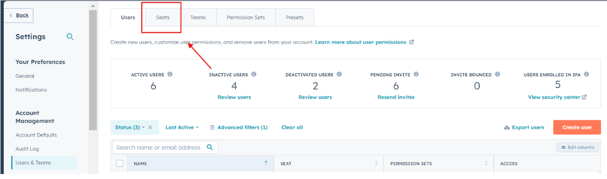
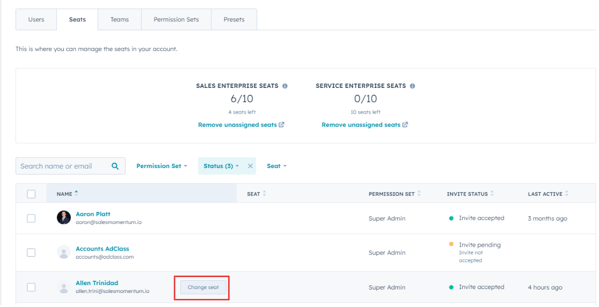
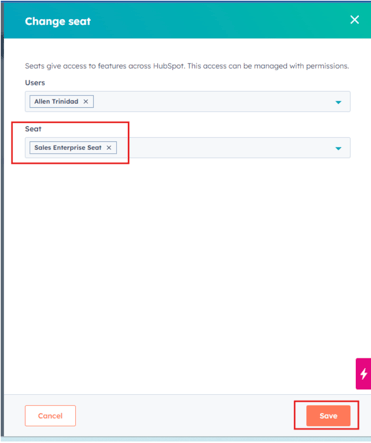
Once the user accepts the invitation, go back to Settings > Users & Teams. Find the new member and assign them a Sales Seat.
Step 3:
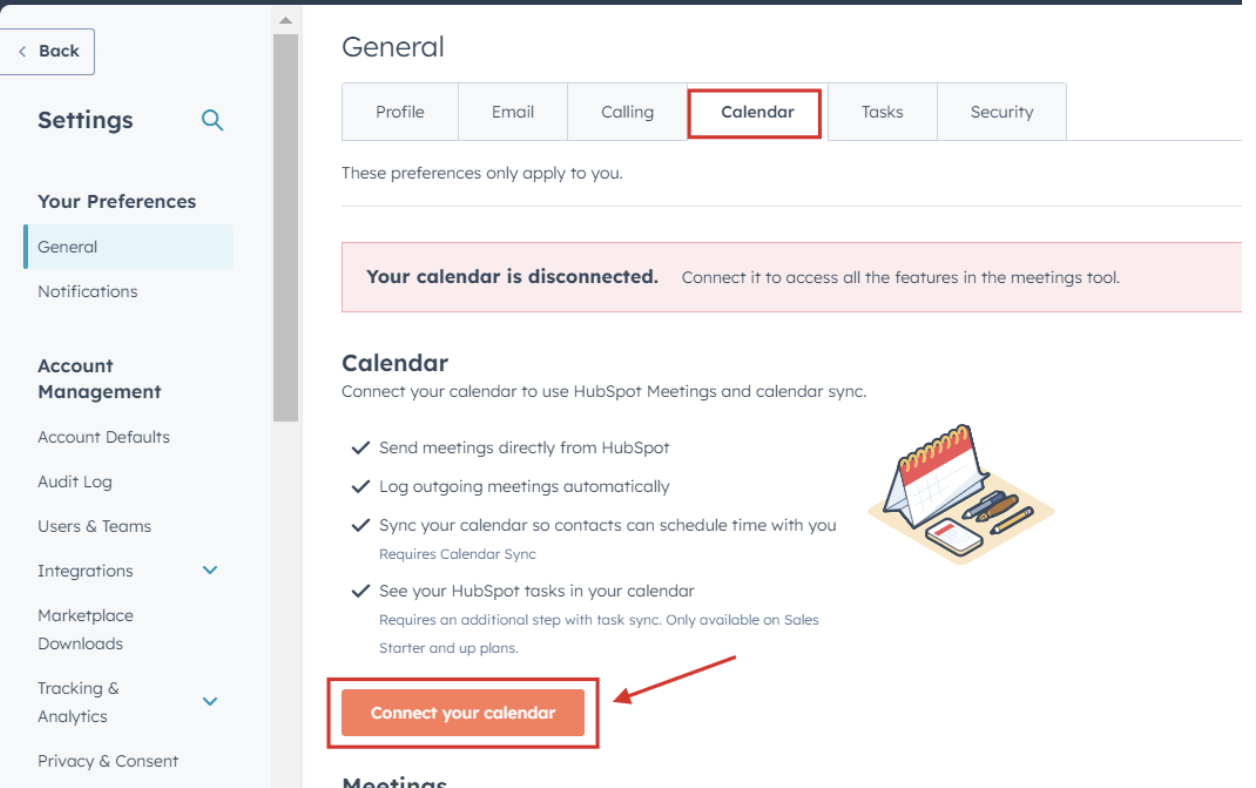
Connect Calendar
Instruct the new member to connect their calendar by going to Settings > General > Calendar and selecting their calendar provider (e.g., Google Calendar).
Step 4:
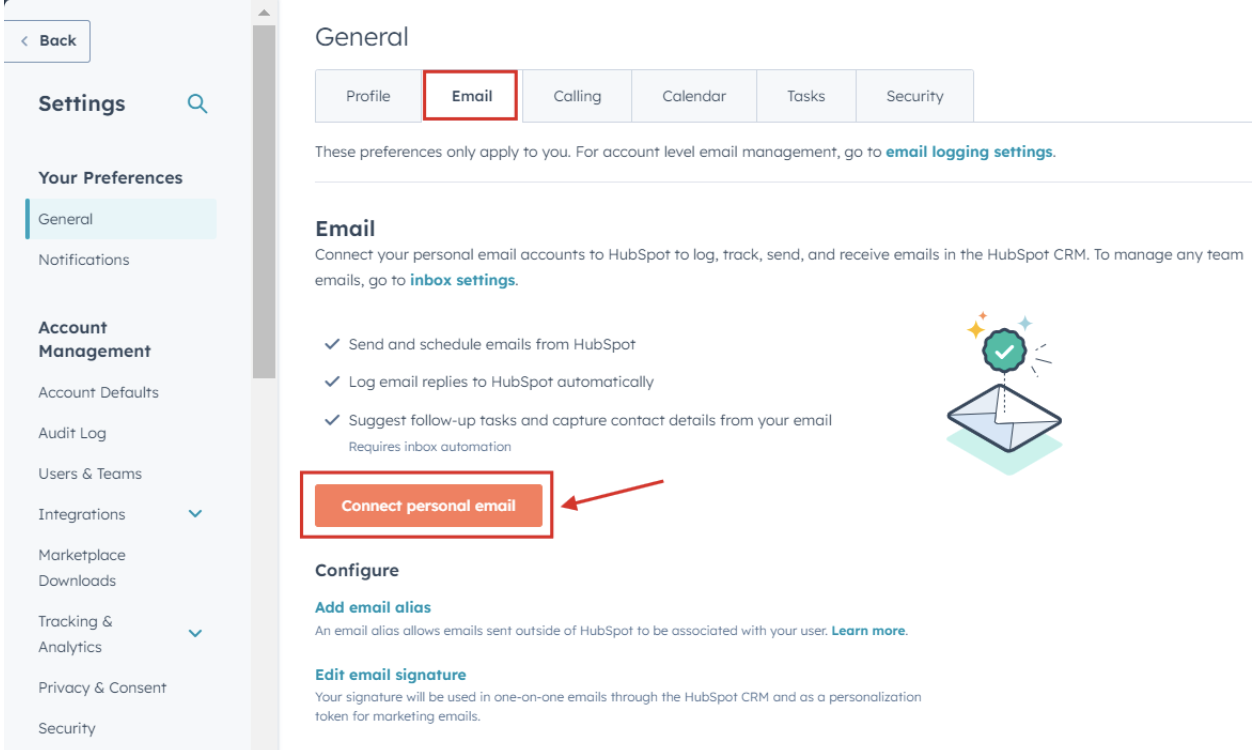
Connect Email
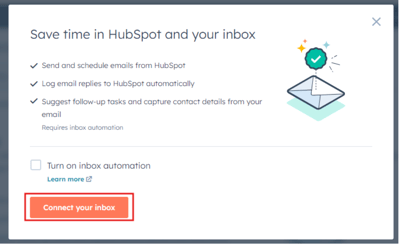
Guide the new member to connect their email by navigating to Settings > General > Email and following the prompts to integrate their email account.
Step 5:
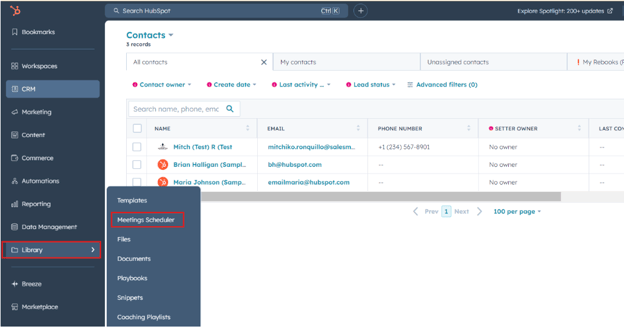
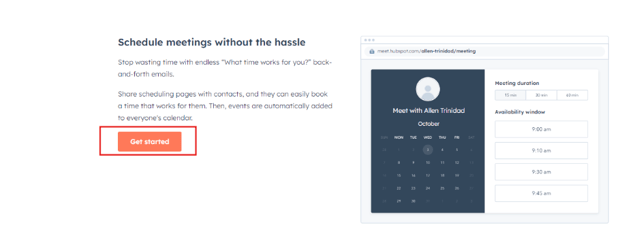
Click Get Started with Meetings
Instruct the new member to click on Get Started with Meetings to set up their meeting preferences and scheduling options by navigating to Library > Meeting Scheduler and click “Get Started”
Step 7:
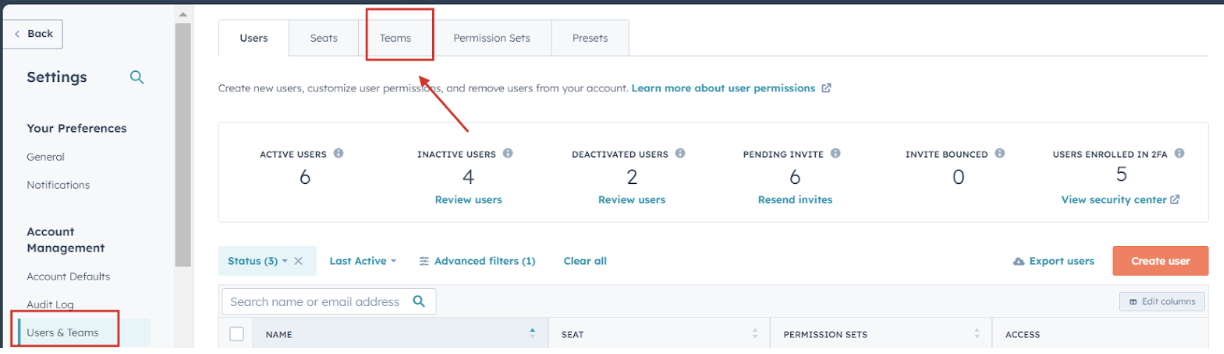
Add to Teams
Add the new member to the appropriate sales teams by navigating to Settings > Users & Teams, selecting the team, and clicking Add User.
Step 8:
Add to Round Robin Meeting Links
If applicable, add the new member to any Round Robin meeting links by selecting the relevant scheduling page and including them in the participant list.