
This SOP ensures that the meeting links remain up-to-date with any changes in scheduling, availability, or meeting details, enhancing the overall user experience for both team members and clients.
LOOM VIDEO: https://www.loom.com/share/c04e2e59a77f4af9991d1eef2e47f727?sid=3badc38a-a80b-4dcd-adad-ee5ce2dffd36
Context
- As business needs change, it may be necessary to tweak existing Round Robin meeting links to better reflect updated availability, team members, or meeting details. This SOP will guide you through the steps to effectively modify these links without disrupting the scheduling process.
Terminologies
- Round Robin: A method of distributing meeting requests among multiple participants in a rotating manner.
- Meeting Link: A unique URL generated for scheduling a meeting that participants can click to join.
Tools
- HubSpot: The platform used to create and manage Round Robin meeting links.
- Zoom: If the meeting location is Zoom
- Google Meet: If the meeting location is Google Meet
Roles & responsibilities
- Team Member: Responsible for making changes to Round Robin meeting links as necessary to reflect updates.
- Approver: Reviews changes to ensure they meet business needs.
Procedure
Follow the steps below to tweak an existing Round Robin meeting link:
Step 1:
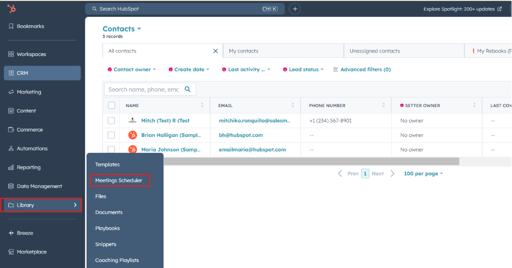
Navigate to the Meeting Scheduler section by selecting Library > Meeting Scheduler from the left side.
Step 2:
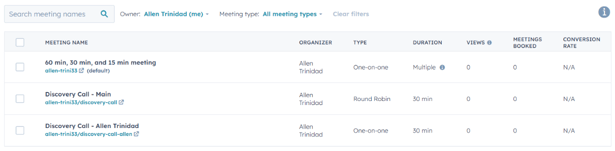
Locate the existing Round Robin meeting link you wish to modify.
Step 3:
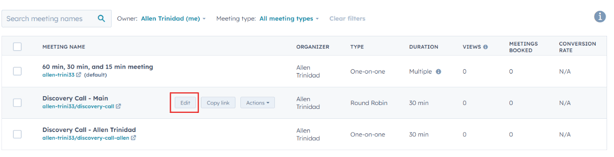
Hover on the meeting link and click Edit
Step 4:
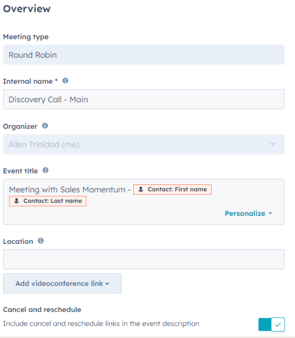
Make necessary adjustments in the following areas:
- Internal Name
- Event Title
- Location
- Description
- Meeting Type
Step 5:
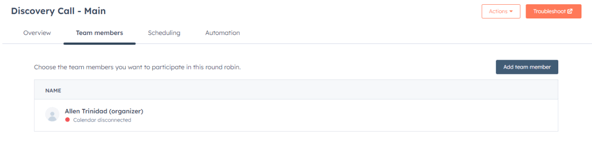
Update participant availability or add/remove team members as needed.
Step 6:
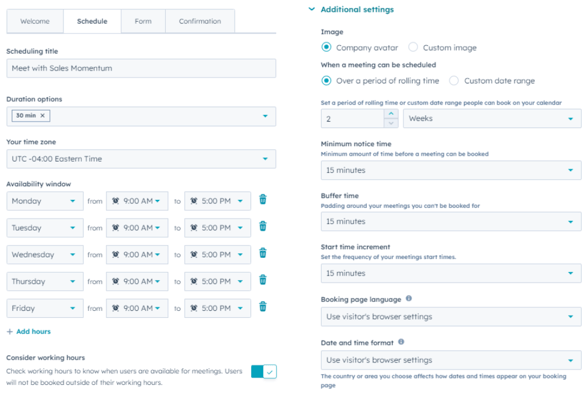
Modify any meeting duration, availability, or buffer times between meetings.
Step 7:
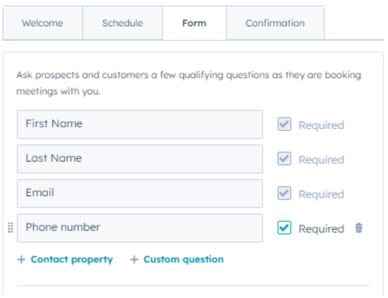
Update any qualifying questions that may need to reflect new information or requirements.
Step 8:
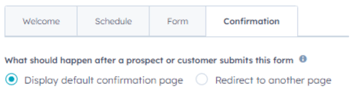
Review and update the redirect links if there are changes to the pages participants should be directed to after booking.
Step 9:
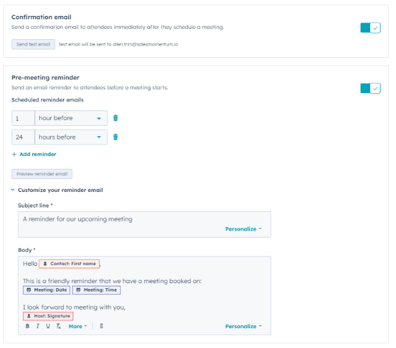
Modify the Confirmation email and Pre-meeting reminder templates as necessary to reflect any new information.
Save your changes and test the meeting link to ensure all updates are functioning correctly.